
Account and cloud subscription
Create and manage your account
A Nodify account lets you access your cloud vaults and manage your cloud plan and connected devices. You can use Nodify Calendar with local vaults without creating an account.
Create a Nodify account
To create an account from Nodify Calendar:
- Open Settings → Account.
- Select Create account. The registration page opens in your browser.
- Follow the instructions in the browser to create your account and connect it to Nodify Calendar.
You can also create an account directly at account.nodify.io. After registration, sign in from the app to connect your device.
Sign in to Nodify Calendar
Signing in on the website and connecting the app are separate steps. Start from Calendar so the browser can connect your account to this device.
- Open Settings → Account.
- Select Sign in.
- Sign in to your Nodify account in the browser.
- Follow the instructions to connect the device and open Nodify Calendar.
- Return to Settings → Account to view the connected account.
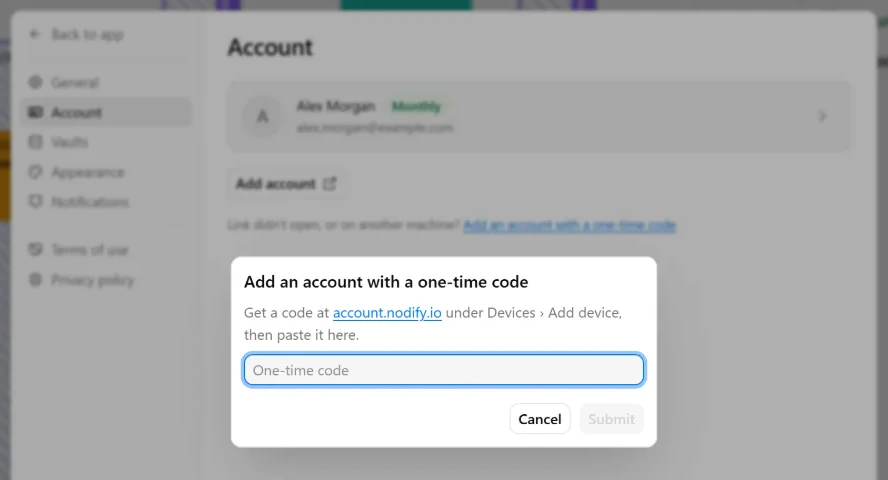
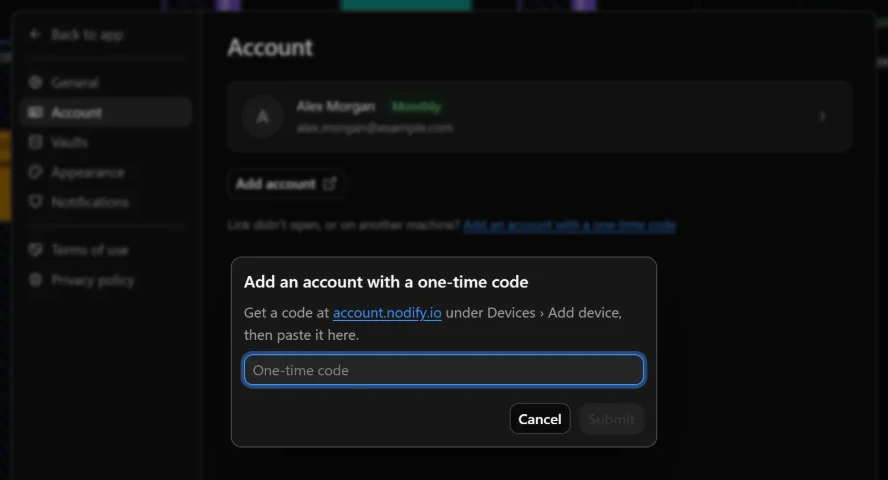
If the browser does not open Calendar, use the one-time code option:
- In Nodify Account, open Devices → Add device and obtain a one-time code.
- Return to Settings → Account in Calendar.
- Select Sign in with a one-time code.
- Paste the code and select Submit.
If the account is already listed but signed out, open it and select Sign in again, or use its one-time code option.
Start using Nodify Cloud
Once your account is connected, choose an available cloud plan. See Cloud plans and billing for the options and purchase instructions.
You can then create a cloud vault or move an existing local vault to the cloud. Please refer to Manage vaults for more information.
To use the same cloud vaults on another device, sign in there with the same account. See Manage connected devices for device limits and management.
Use multiple accounts
You can have more than one Nodify account connected to Nodify Calendar.
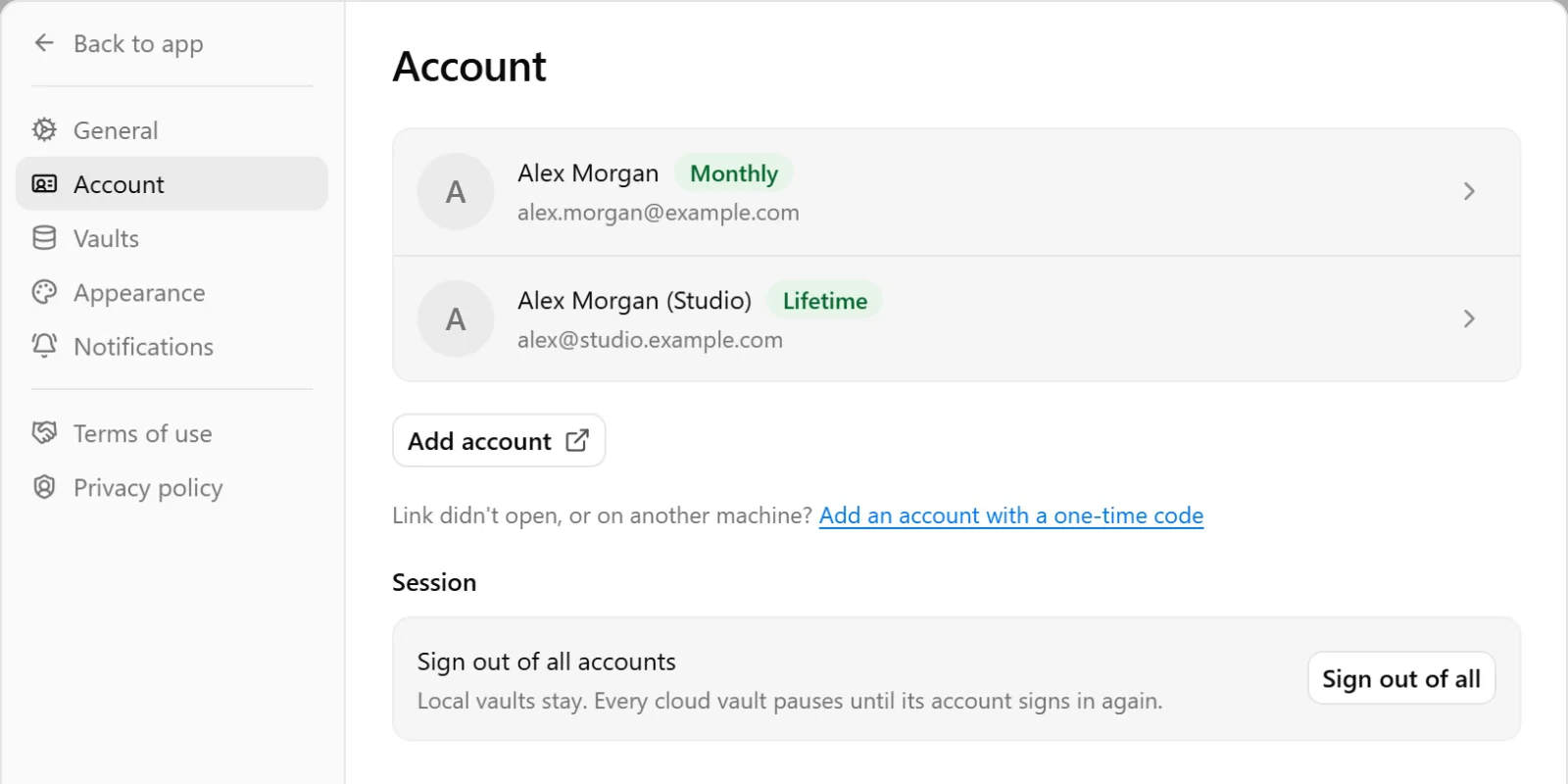
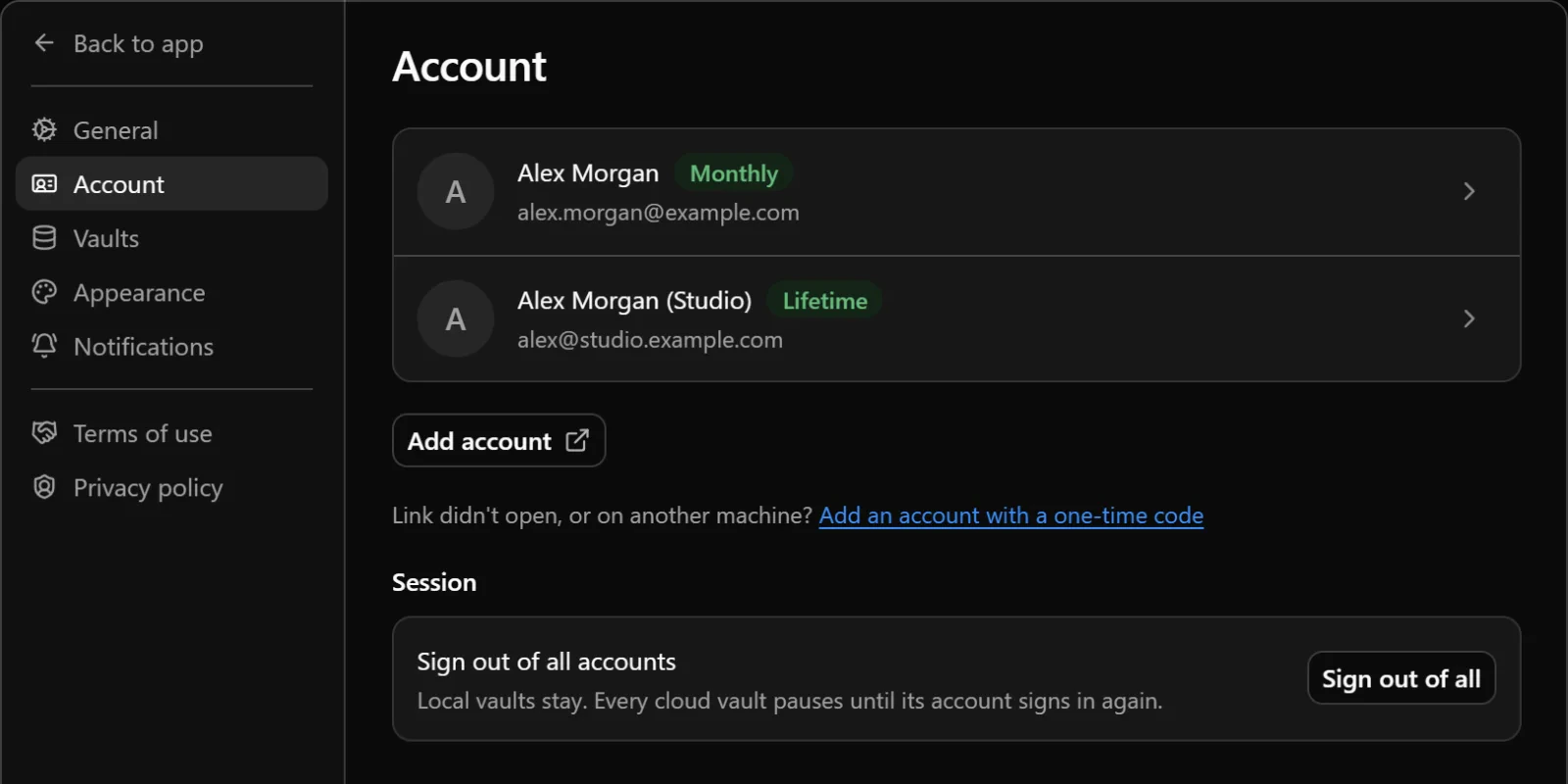
To add another account, open Settings → Account, select Add account, and complete the sign-in process in your browser. If the app link does not open, use Add an account with a one-time code.
Each account has its own cloud access and cloud vaults. When creating a cloud vault or moving a local vault to the cloud, choose the account it should belong to.
Manage your profile and password
To open your account settings, go to Settings → Account, open the account, and select Edit profile. This opens Nodify Account in your browser.
If you have forgotten your password, select Forgot password? on the website’s sign-in page and follow the recovery instructions.
Sign out or remove an account from the app
To sign out, open Settings → Account, open the account, and select Sign out. Your local vaults remain available. This account’s cloud vaults stop syncing on the device until you sign in again.
If several accounts are signed in, you can select Sign out of all on the main Account page.
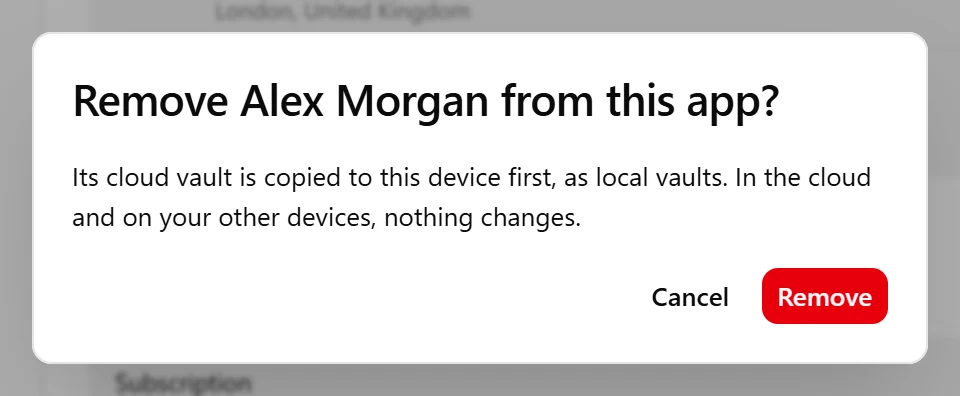
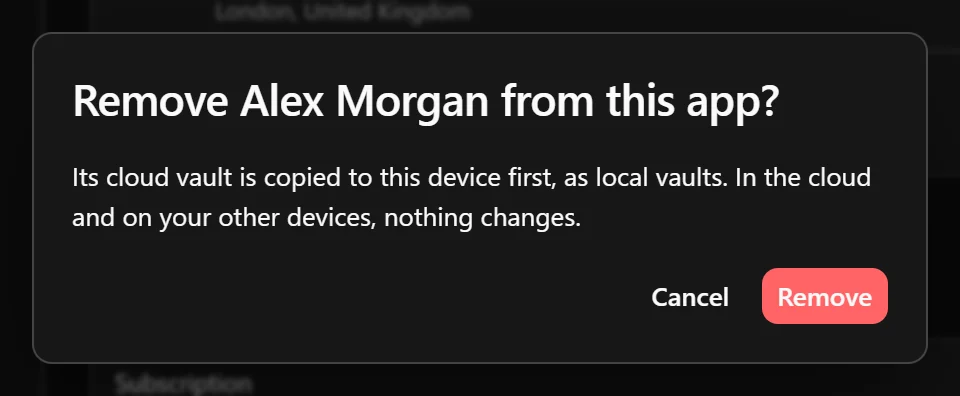
To remove an account from Calendar, open its page, select Remove under Remove from this app, and review the confirmation.
Before removing the account, Calendar copies its cloud vaults to this device as independent local vaults. These copies include changes saved here that have not reached the server. If a vault cannot be opened, it cannot be copied; its files are kept in recoverable storage instead.
Removing an account from the app does not delete your Nodify account or its cloud vaults on the server and other devices. You can connect the account again later.
Delete your Nodify account
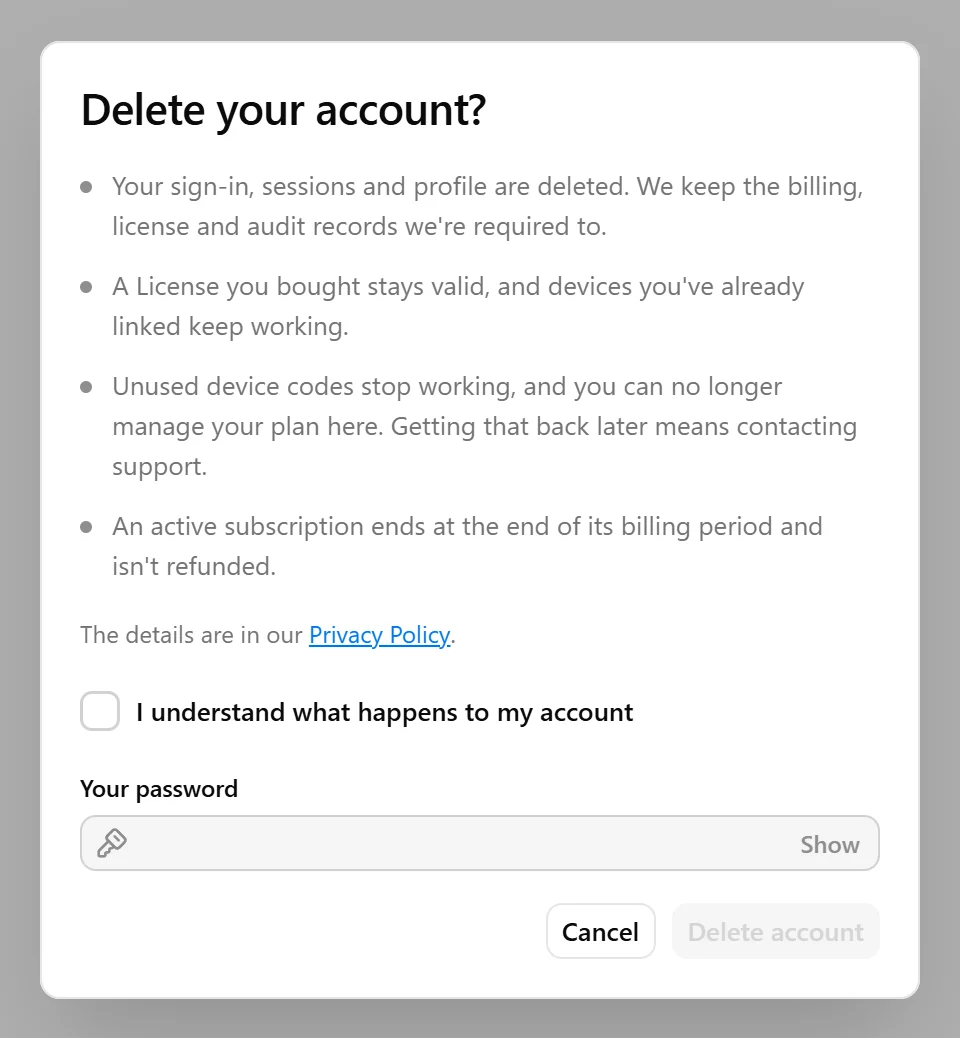
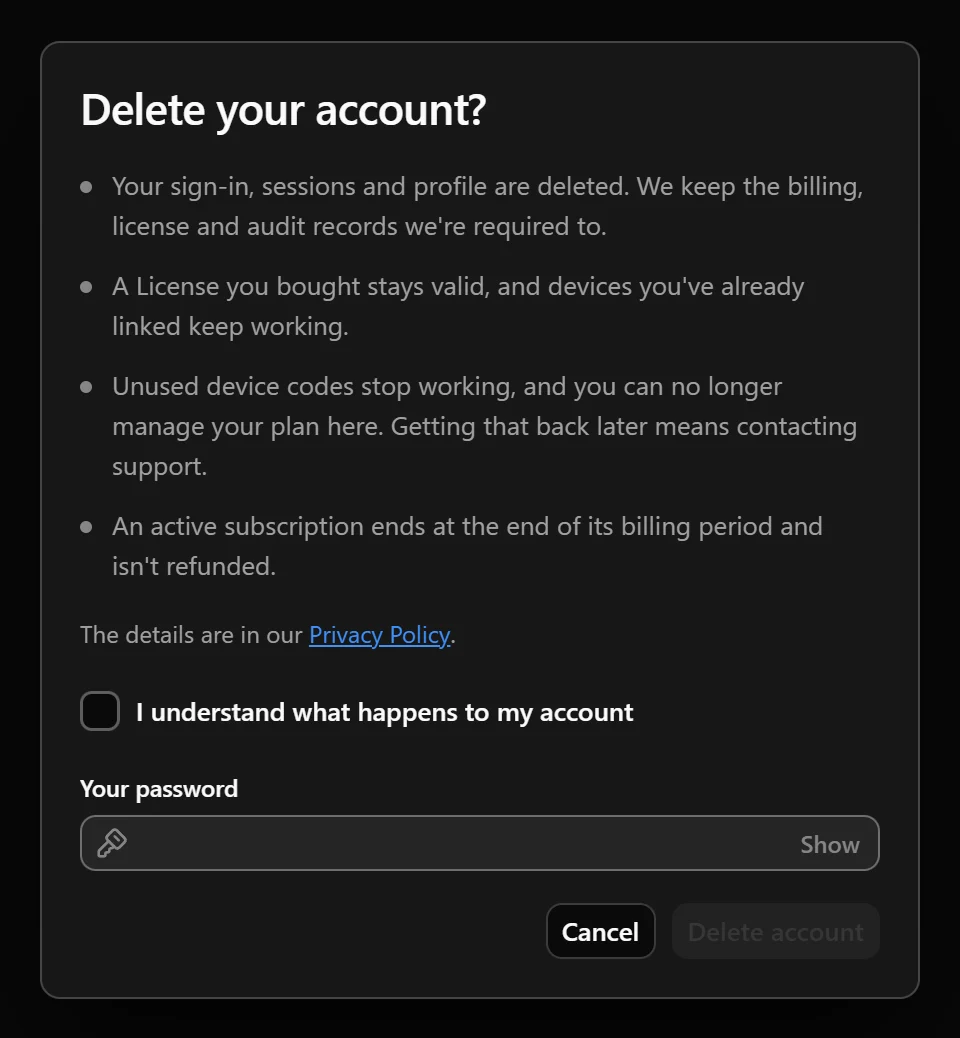
Deleting your Nodify account is different from removing it from Calendar on one device. Remove from this app keeps your online account, while account deletion removes it from Nodify Account.
To delete your account, sign in at account.nodify.io and open your account settings. Review the account deletion information and follow the confirmation instructions.
Before confirming, check what will happen to your cloud vaults and any active subscription or license. Make local copies of any cloud vaults you want to keep. See Manage vaults for instructions.
Was this page helpful?
Your feedback helps us improve the docs.