
Tasks
Create and manage tasks
Tasks represent work you want to complete. You can complete a task directly from its list, place it on the calendar manually, or let autocomplete schedule it.
Each task belongs to a list. For information about folders, lists, and inherited settings, see Task organization.
Create a folder or list
Lists contain tasks. Folders group lists and other folders. You can create a list directly in the task hierarchy or inside a folder.
- Open the Tasks tab.
- If you have several vaults, select the vault where you want to create the folder or list.
- Open Task hierarchy.
- To create the item inside an existing folder, open that folder. Otherwise, stay at the top level.
- Select Add folder or Add list.
- Enter a name and press Enter to save.
Open the new list to add tasks, or open the new folder to create lists and folders inside it.
You can also add tasks to the built-in Inbox without creating your own list.
For more information about organizing tasks, see Task organization.
Create a task from a list
- Open Tasks.
- If you have several vaults, select the vault where you want to keep the task.
- Open a list.
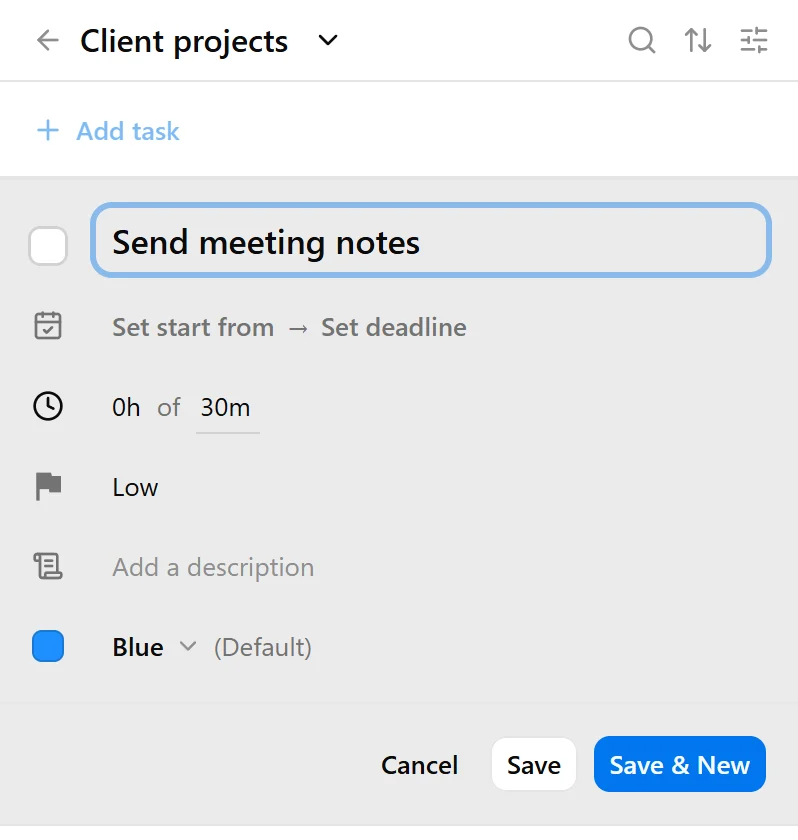
- Select Add task.
- Enter a title and any other information you need.
- Select Save.
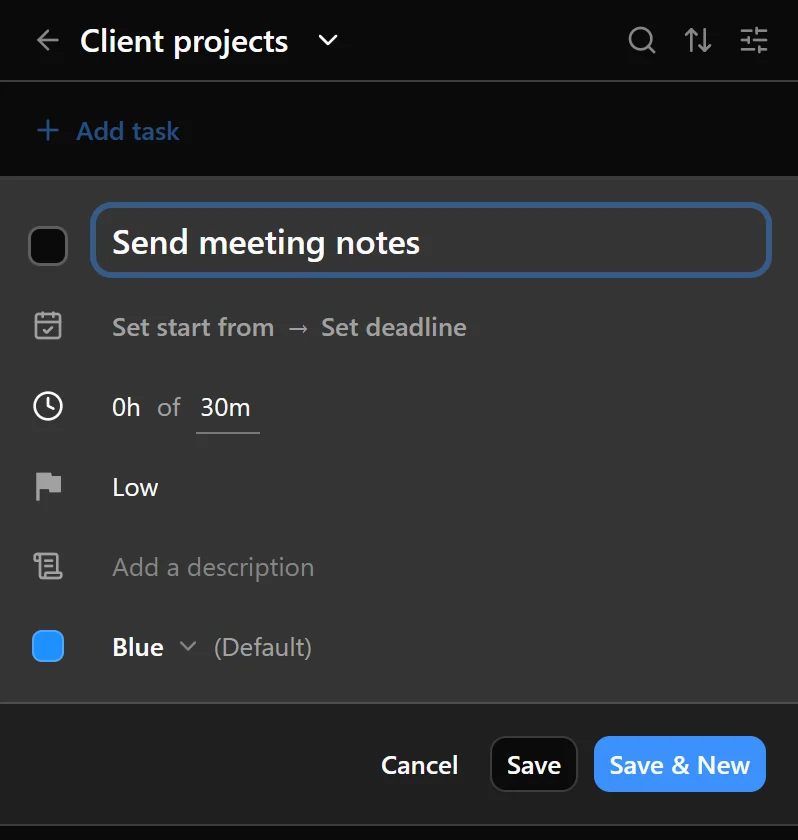
Select Save & New to save the task and immediately create another one.
For more details about dates, expected duration, priority, reminders, and scheduling settings, see Task properties.
Create a task on the calendar
- Click and drag across the time when you want to work on the task.
- Select Task in the creation panel.
- Choose the vault and to-do list where the task should be stored.
- Enter the title and any other details.
- Select Save.
The selected time becomes the task’s first occurrence on the calendar. An occurrence is a scheduled period of work on a task.
If you create a task on the calendar without selecting a to-do list, the task appears in the Inbox.
Edit a task
To edit an existing task, open its list and select the task. Changes to an existing task are saved as you make them.
To open the full task editor from the calendar, select a task occurrence, then select 
 . This button appears in the upper-right corner of the panel, beside Delete.
Move a task to another list
Open the task’s menu, select Move to list, and choose the destination list.
A task can belong to only one list at a time. Moving it may change the properties it inherits. Values set directly on the task remain unchanged.
For more about inheritance, see Task organization.
Move or resize an occurrence
Drag an occurrence on the calendar to change when it starts. Drag its top or bottom edge to change its duration.
If the occurrence was placed by autocomplete, the app asks for confirmation before making it a fixed manual placement.
To keep an autocompleted occurrence at its current time without moving it, right-click it and select Pin.
For more about fixed placements and returning work to autocomplete, see Autocomplete. For occurrence properties and recurrence settings, see Task properties.
Complete, reopen, or delete a task
Select the checkbox beside a task to mark the entire task as completed. Completed tasks appear in the Completed section of their list.
Select the checkbox again to reopen the task.
You can also complete an individual task occurrence. When completing the last relevant occurrence, or when the completed time reaches the task’s expected duration, Nodify Calendar may ask whether you also want to complete the main task:
- Select Yes to complete the task.
- Select No to complete only the occurrence.
To delete an occurrence from the calendar:
- Find the occurrence you want to delete on the calendar.
- Right-click the occurrence and select Delete.
- If it belongs to a recurring series, choose what to delete:
- Only this occurrence
- This and following occurrences
- All occurrences
All occurrences deletes the entire recurring series. The task itself remains in its list.
To delete a task from the right sidebar:
- Open Tasks in the right sidebar.
- Open the list containing the task.
- Right-click the task in the list and select Delete.
This deletes the task and all its occurrences from the calendar.
Was this page helpful?
Your feedback helps us improve the docs.