
Schedules
Schedules and slots
Schedules define when autocomplete can place different types of tasks in the calendar. For example, you can create separate schedules for work, study, exercise, or personal projects.
A schedule needs one or more slots. Each slot marks a period during which autocomplete can place tasks assigned to that schedule.
Use or create a schedule
When you open Nodify Calendar for the first time, Work hours is the default schedule. Vaults you add later start without schedules.
To create another schedule:
- Select Schedules at the top of the right sidebar.
- If you have several vaults, select the vault where you want to create the schedule.
- Select Add schedule.
- Enter a name for the schedule, then press Enter to save.
You can also select an emoji while entering the name.
Assign tasks to a schedule
Tasks must be assigned to a schedule before autocomplete can place them in its slots.
You cannot create a new task from a schedule. Create the task in Tasks first, then assign the schedule through the task’s properties.
You can also open a schedule and select the + icon in its header to attach an existing task. Find the task and select it from the list.
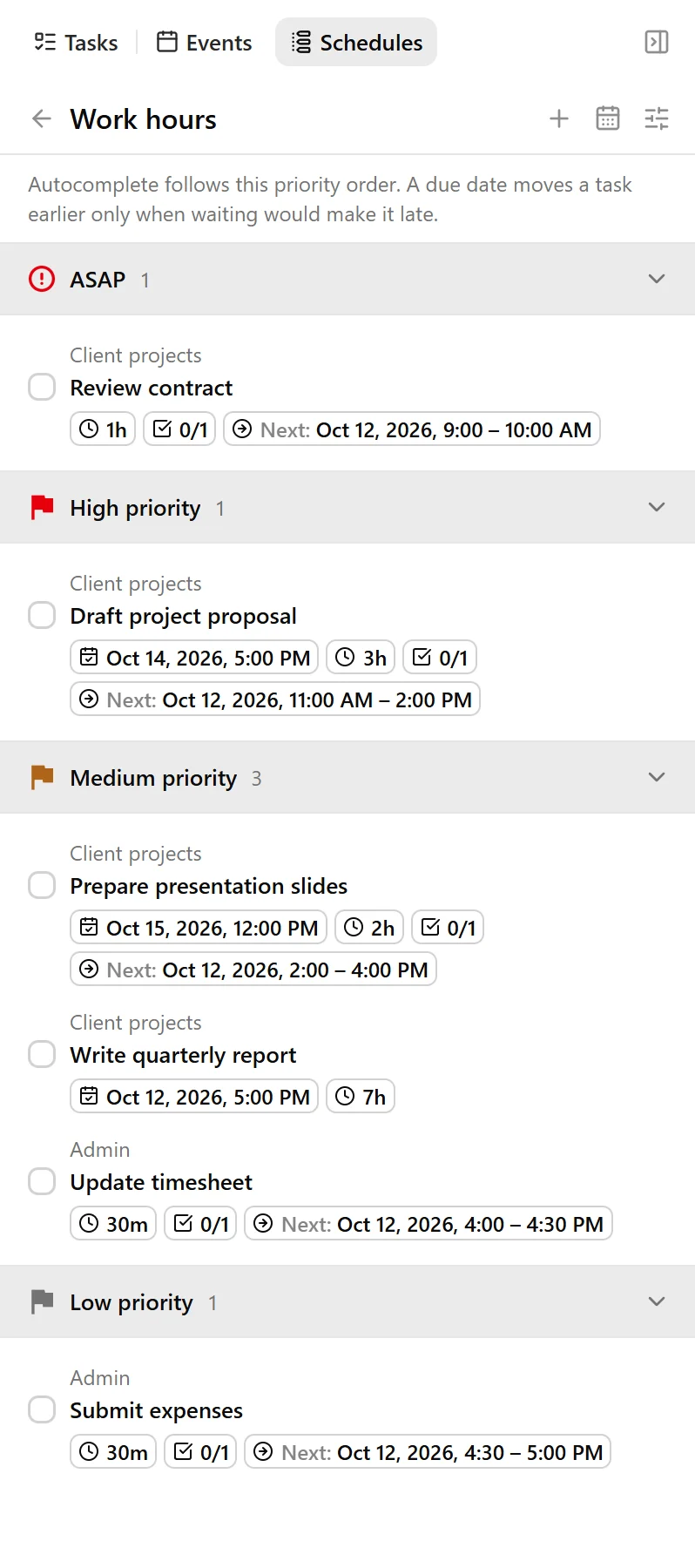
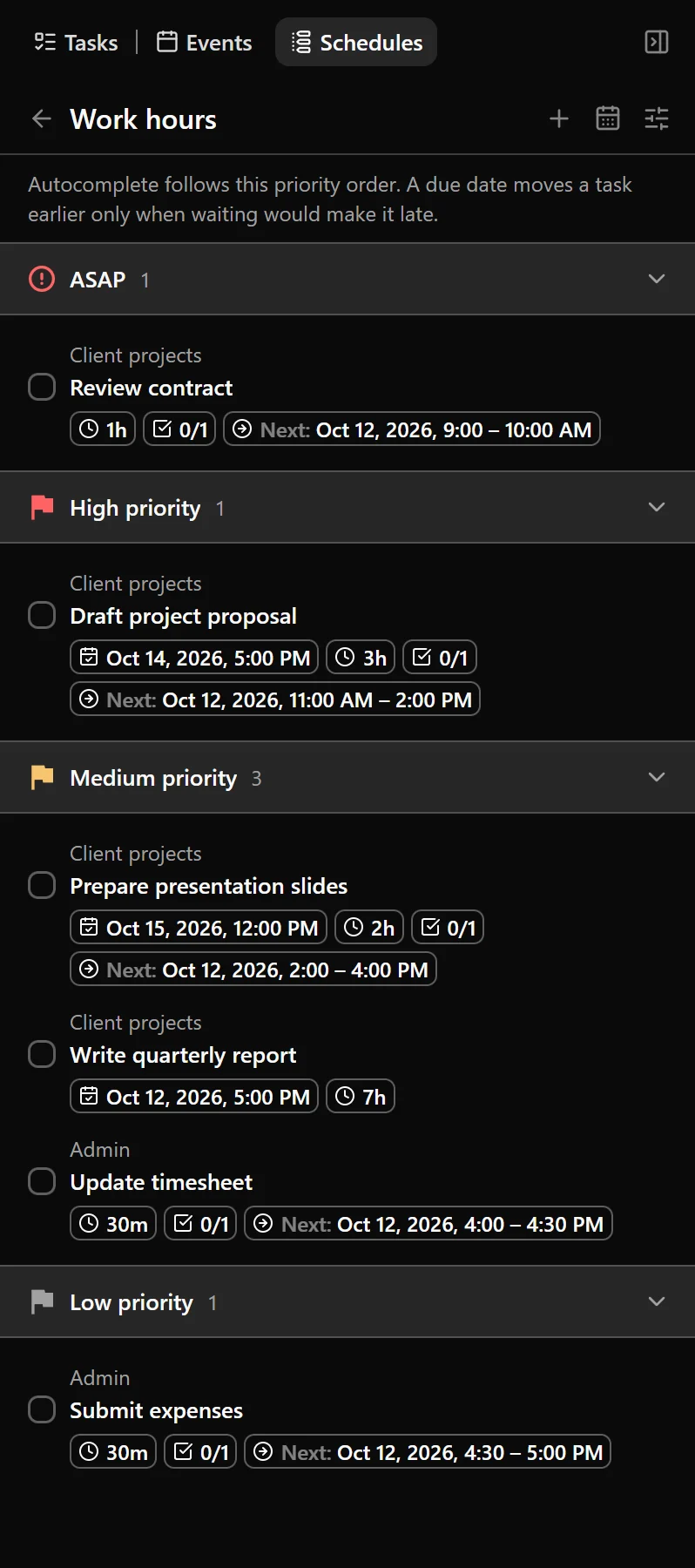
The schedule page groups its assigned tasks by priority:
- ASAP
- High priority
- Medium priority
- Low priority
You can reorder tasks within the same priority group.
To assign the same schedule to tasks inside a folder or list:
- Open Tasks, then Task hierarchy.
- Right-click the folder or list.
- Open the schedule submenu and select Custom. It shows Inherit schedule, No schedule, or the name of the current schedule.
- Choose the schedule.
Tasks inside the folder or list use this schedule if their Schedule property is set to Inherit. A schedule configured on a nested folder, list, or individual task takes priority.
For more about inherited properties, see Task organization.
Create a slot
To create a slot from a schedule:
- Select Schedules at the top of the right sidebar.
- If you have several vaults, select the vault containing the schedule.
- Open the schedule for which you want to create a slot.
- Select the calendar icon in the schedule header.
- Select Add slot.
- Set the start and end time.
- Check the timezone.
- If the slot should repeat, set its repeat rule.
- Select Save.
Select Save & New if you want to save the slot and immediately create another one.
You can also create a slot directly on the calendar where you want it to appear:
- Click and drag across the required time in the calendar.
- Select Schedule in the creation panel.
- Choose a schedule, checking that it belongs to the intended vault.
- Adjust the start time, end time, timezone, or repeat rule if necessary.
- Select Save.
Slot properties
Each schedule slot has the following properties:
| Property | Description |
|---|---|
| Schedule | The schedule that uses the slot. |
| Start | The date and time when the slot begins. |
| End | The date and time when the slot ends. |
| Timezone | The timezone used for the slot. |
| Repeat | An optional rule that creates a series of slots. |
Schedule slots always have a start and end time. They cannot be created as all-day slots.
Create a repeating slot
Use repeating slots for time that follows a regular pattern, such as work hours every weekday.
When creating or editing a slot:
- Select the repeat setting.
- Choose how often the slot should repeat.
- Configure the days or interval.
- Set when the repetition should end, if needed.
- Save the slot.
For example, you can create a Work hours slot from 9:00 AM to 5:00 PM and repeat it every Monday through Friday.
The available repeat frequencies are:
- daily;
- weekly;
- monthly;
- yearly.
You can change the interval to create patterns such as every two weeks. Weekly rules can include one or more selected weekdays.
A repeat rule can continue without a fixed end, stop after a specified number of occurrences, or stop on a selected date.
Edit or delete a slot
Select a slot in the calendar to change its time, schedule, timezone, or repeat rule.
You can also move a slot by dragging it, or change its duration by dragging its top or bottom edge.
Alternatively, open a schedule, select the calendar icon, find the slot, open its menu, and select Edit.
To change a repeat rule after creation, open any slot in the series and edit its current repeat setting. The new rule applies to the selected slot and the slots that follow it.
If you change the time of a repeating slot without changing its repeat rule, choose which part of the series to change:
- Only this occurrence changes the selected slot without changing the rest of the series.
- This and following occurrences changes the selected slot and all later slots in the series.
- All occurrences changes the complete series.
To delete a slot, select it and use its delete action. You can also delete it from the schedule’s slots list.
For a repeating slot, choose whether to delete only the selected occurrence, that occurrence and all following ones, or the complete series.
Deleting a slot removes that available period from the schedule. It does not delete the schedule or its tasks.
Manage a schedule
To rename a schedule, change its color, or delete it, right-click the schedule, or open it and select its settings icon.
- Select Rename to change its name.
- Open the color submenu to choose a color.
- Select Delete to remove the schedule and confirm the deletion.
Deleting a schedule removes its slots. Its tasks remain in their lists, but can no longer use the deleted schedule for autocomplete.
Was this page helpful?
Your feedback helps us improve the docs.