
Tasks
Task properties
Use task properties to set a task’s title, list, dates, expected duration, priority, description, color, reminders, and autocomplete settings.
To edit a task’s properties, open its list and select the task. Changes are saved as you make them.
Basic properties
A task can contain the following information:
| Property | Description |
|---|---|
| Title | The name of the task. |
| To-do list | The list where the task is stored. |
| Start from | The earliest date or time when the task can begin. |
| Deadline | The date or time by which the task should be completed. |
| Expected duration | The amount of time you expect the task to take. |
| Priority | The importance of the task: Low, Medium, High, or ASAP. |
| Description | Notes or other information related to the task. |
| Color | The color used to identify the task in lists and on the calendar. |
Some properties can be inherited from the list or folder containing the task. For more about inheritance, see Task organization.
Start dates and deadlines
Use Start from to specify when work on a task may begin. It does not place the task on the calendar at that time.
Use Deadline to specify when the task should be completed.
You can enter a date without a time or set an exact date and time. If you use both properties, the deadline must be later than the start.
Autocomplete uses these limits when deciding where to place the task. See Autocomplete for how hard and soft deadlines affect scheduling.
Reminders
Reminders notify you before a task occurrence starts.
A task’s reminder settings can be inherited from its list or folder. You can also configure reminders for an individual occurrence.
Reminders work while Nodify Calendar is running, including in the background with its window closed. They stop when you quit the app.
Autocomplete settings
These settings control whether and where autocomplete can schedule the task:
| Setting | Description |
|---|---|
| Autocomplete | Enables or disables automatic scheduling for the task. |
| Schedule | Defines which schedule’s slots autocomplete can use. |
| Hard deadline | Determines whether autocomplete must keep the task before its deadline. |
| Chunking | Allows autocomplete to split the task into smaller periods of work. |
| Minimum chunk duration | The shortest period autocomplete may create when splitting the task. |
| Preferred chunk duration | The preferred length of each period of work. |
These settings can be inherited or configured directly on the task. A task uses one schedule at a time.
For details about how these settings affect task occurrences, see Autocomplete.
Task occurrences
An occurrence is a period on the calendar when you plan to work on a task. One task can have several occurrences.
Occurrences can be created manually, belong to a recurring series, or be placed by autocomplete. Autocomplete can also split a task into several occurrences when chunking is enabled.
Open a task to see its occurrences and completed progress in the Occurrences section. Select View all beside Relevant occurrences to view the complete list.
Each occurrence has its own start and end time. It can also have an occurrence-specific title, description, color, recurrence pattern, timezone, and reminders.
Changing an occurrence does not necessarily change the main task. For example, you can add a description that applies only to one occurrence or keep the description inherited from the task.
A task occurrence moved manually on the calendar becomes fixed. For information about allowing autocomplete to place it again, see Autocomplete.
Recurring tasks
A recurring task has a series of occurrences on the calendar.
To create a recurring task:
- Add the task to the calendar.
- Open its occurrence.
- Select Does not repeat.
- Choose how often it should repeat.
- Select Save.
You can use daily, weekly, monthly, yearly, or custom recurrence patterns.
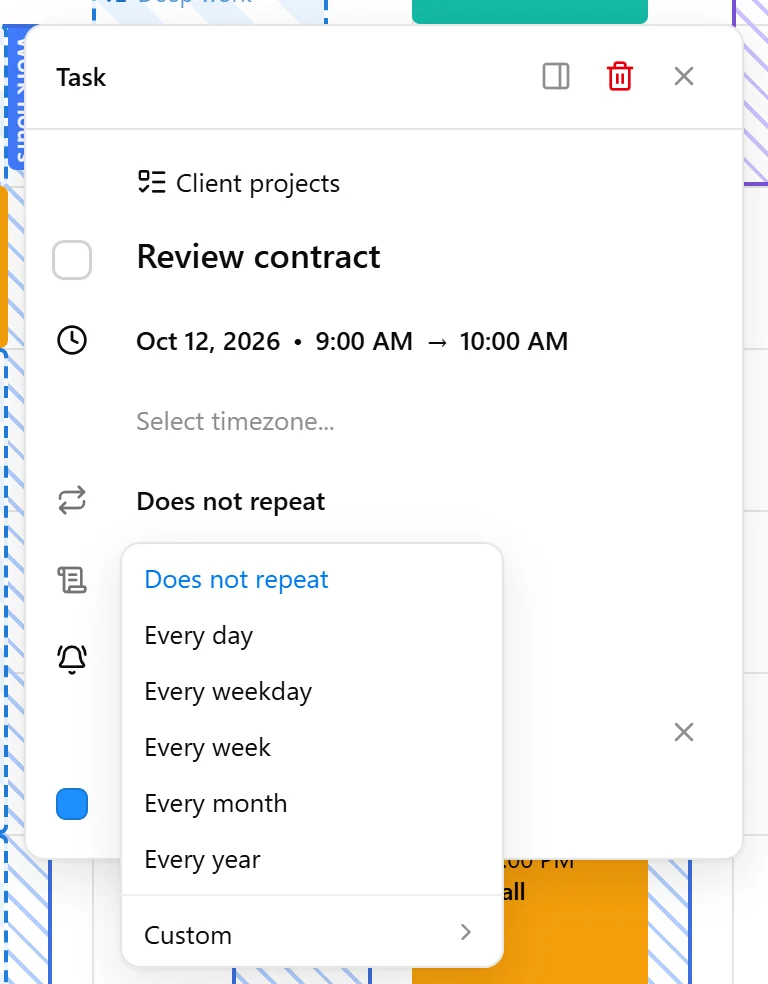
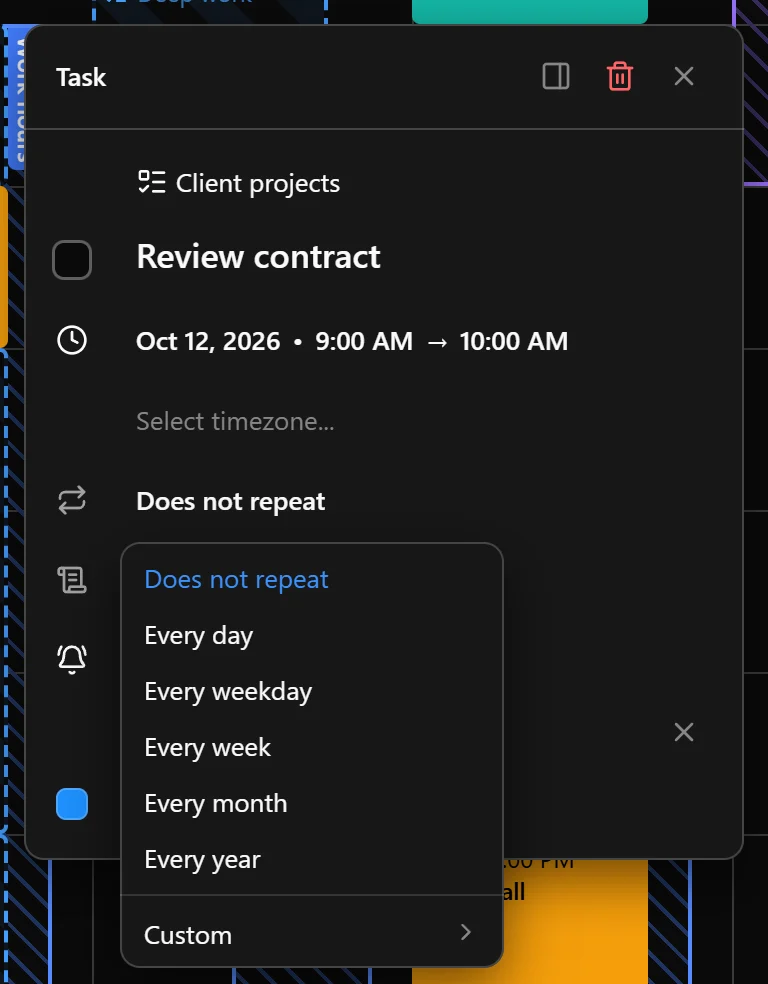
To change an existing repeat rule, open an occurrence and edit its repeat setting. The new rule applies to that occurrence and the occurrences that follow it.
When you change the time of an occurrence without changing its repeat rule, or delete an occurrence, Nodify Calendar asks which part of the series you want to change:
- Only this occurrence changes the selected occurrence.
- This and following occurrences changes the selected occurrence and every occurrence after it.
- All occurrences changes the entire series.
Choose the option that matches the part of the series you want to update.
For moving, completing, or deleting occurrences, see Create and manage tasks.
Was this page helpful?
Your feedback helps us improve the docs.