
Settings
Notifications
Nodify Calendar can send system notifications for task and event reminders.
Set default reminders
Open Settings, then select Notifications.
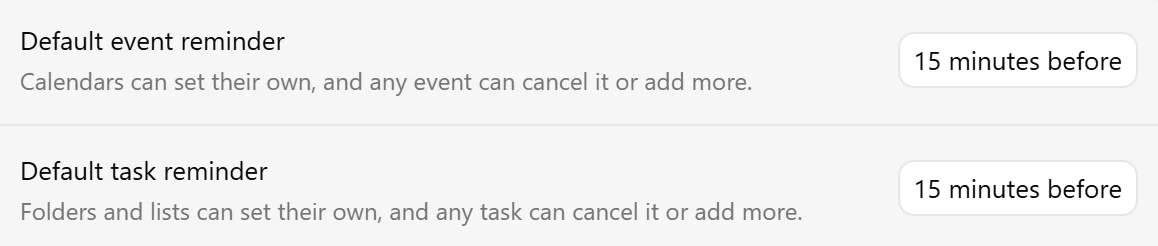
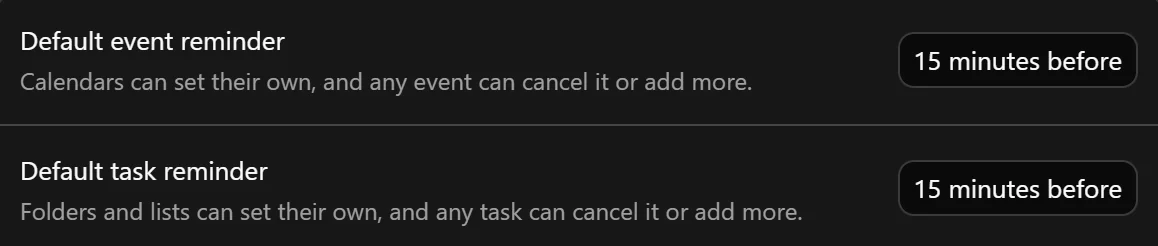
You can set separate default reminders for events and tasks. Calendars, folders, lists, and individual items can override these defaults.
Select No reminder if you do not want reminders to be added by default. Individual items can still have their own reminders.
For more information about inherited reminders and individual settings, see Task properties, Task organization, Event properties, and Calendars.
Configure reminder behavior
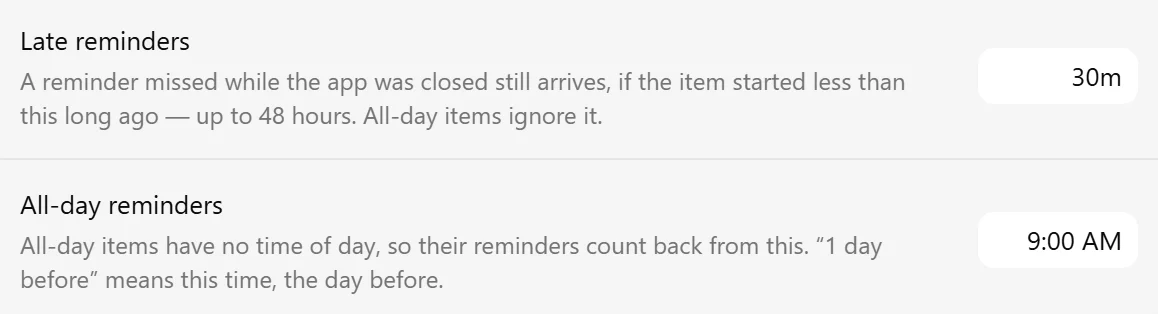
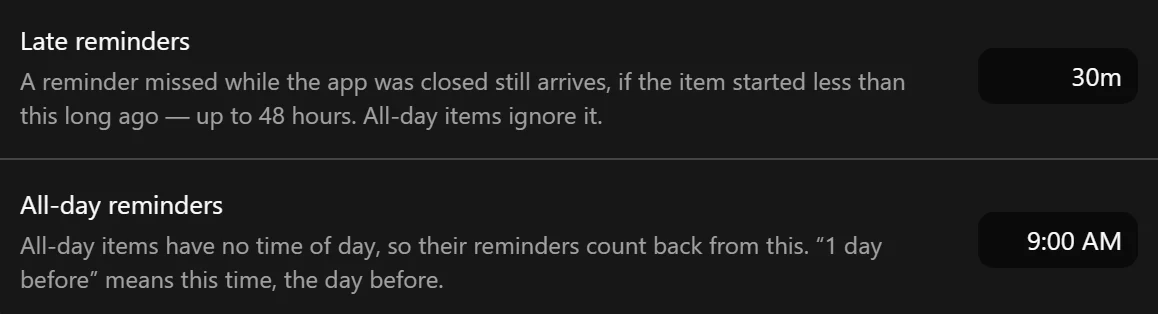
Use Late reminders to choose how long a missed reminder remains relevant. You can set a period of up to 48 hours.
If Calendar was not running when a reminder was due, the notification can appear when the app starts again, provided it is still within the allowed period. This setting does not apply to all-day items.
Because all-day items do not have a start time, use All-day reminders to choose the time from which their reminders are calculated. For example, if you choose 09:00, a reminder set to 1 day before is due at 09:00 on the previous day.
Pause and resume notifications
Open the Nodify Calendar menu in the system tray or menu bar and select Pause notifications.
You can pause notifications:
- For 1 hour
- Until tomorrow
- Until I resume them
The pause remains in effect if you restart Calendar.
To turn notifications back on, select Resume notifications in the tray menu. You can also open Settings → Notifications and select Resume beside the pause status.
Background operation and start at login
Reminders can only be delivered while Nodify Calendar is running. The window does not need to be open if the app continues running in the background.
When Calendar has an available tray or menu-bar icon, closing its window keeps the app running. Use Open Calendar from that icon’s menu to reopen the window, or Quit Calendar to stop the app completely.
On systems where the tray icon is unavailable or cannot be displayed, closing the window quits Calendar. Keep the app open to receive reminders.
Enable Start at login in Settings → Notifications if you want Nodify Calendar to start automatically when you sign in to your computer.
Check notification permission
The Notification permission row in Settings → Notifications shows the permission information available from your operating system.
| Status | Meaning |
|---|---|
| Allowed | The operating system reports that notifications are allowed. |
| Blocked | Notifications are blocked in the operating system. |
| Not reported by this OS | The operating system does not report the permission status to Calendar. Check its notification settings directly. |
| Unavailable | Notification permission information is unavailable. |
If notifications are blocked, select Open notification settings and allow notifications for Nodify Calendar in your operating system.
This button is also available when the operating system does not report the permission status. On some systems, Calendar appears in the notification settings only after an installed copy has sent its first notification.
Was this page helpful?
Your feedback helps us improve the docs.