
Tasks
Task organization
Use folders and lists to organize related tasks and set shared properties for them.
Each vault has its own task hierarchy.
How the hierarchy works
The hierarchy contains three types of items:
- Folders organize related areas of work. They can contain lists and other folders.
- Lists group related tasks.
- Tasks are the individual pieces of work you need to complete.
Every task belongs to a list. Tasks cannot be placed directly inside a folder.
A hierarchy can look like this:
Work
├── Client projects
│   ├── Website redesign
│   └── Product launch
└── Administration
In this example, Work and Client projects are folders. Website redesign, Product launch, and Administration are task lists.
The Inbox is a built-in list for tasks you have not assigned to another list. You can create tasks there and move them later.
For instructions on creating folders, lists, and tasks, see Create and manage tasks.
Navigate and find items
Open the Tasks tab, select the vault you want to work in, and open Task hierarchy.
Select a folder to view its contents or a list to view its tasks. Use the back arrow beside the current name to return to the previous level. In a nested folder, use the menu beside its name to return directly to an earlier folder.
Use the search button inside a folder to find folders and lists within that part of the hierarchy. Open a list and use its search button to find a task.
Reorder folders, lists, and tasks
Drag folders and lists to change their order at the current level.
To arrange tasks manually in a list, select Position in its sorting menu, then drag the tasks into the order you want.
You can also sort tasks by:
- Deadline
- Next occurrence
For either option, choose Ascending or Descending.
Move, rename, or delete a folder or list
To move a folder or list:
- Right-click the folder or list in the task hierarchy.
- Open Move to.
- Select the destination folder.
A folder keeps its contents when moved. A list keeps its tasks. Moving either item may change the properties it inherits. See Default properties for new folders and lists.
To rename a folder or list, right-click it and select Rename.
To delete a folder or list, right-click it and select Delete. The app asks you to confirm. Check its contents before confirming.
Default properties for new folders and lists
All hierarchical properties in a new folder or list are set to Inherit by default.
This means that the new folder or list uses the properties provided by its current location in the hierarchy. You only need to change a property when you want different behavior for that folder, list, or the items inside it.
If you move a folder or list without changing its default properties, it begins inheriting properties from its new parent folder. If it is moved to the top level, it inherits from the app settings. Values inherited before the move are not saved as custom values.
Properties set to Custom, None, Enabled, or Disabled remain unchanged after the folder or list is moved.
Properties that can be inherited
| Property | Description |
|---|---|
| Duration | Provides an expected duration for tasks that do not define their own. |
| Reminder | Provides a default reminder time for tasks below the folder or list. |
| Color | Applies a shared color to items that inherit it. |
| Autocomplete | Determines whether autocomplete can schedule tasks below the folder or list. |
| Hard deadline | Determines whether task deadlines are treated as hard deadlines. |
| Schedule | Determines which schedule autocomplete uses for tasks. |
| Chunking | Determines whether autocomplete can split tasks into smaller periods of work. |
| Minimum chunk duration | Sets the shortest period autocomplete may create when splitting a task. |
| Preferred chunk duration | Sets the preferred length of each period of work. |
Minimum and preferred chunk durations are available when chunking is enabled.
For details about how these settings affect scheduling, see Autocomplete.
Property options
The available options depend on the property:
| Option | What it does |
|---|---|
| Inherit | Uses the value provided by the nearest folder, list, or app setting above the current item. |
| Custom | Defines a different value for the current item and items below it. |
| None | Removes the inherited value from the current item and items below it. |
| Enabled | Turns a setting on for the current item and items below it. |
| Disabled | Turns a setting off for the current item and items below it. |
Settings apply to items below a folder or list only when those items inherit the property.
Duration and schedule provide Inherit, None, and Custom options.
Autocomplete, hard deadlines, and chunking provide Inherit, Enabled, and Disabled options.
Color provides Inherit and Custom options.
For Reminder, choose a reminder time to set your own value, select No reminder to remove the inherited reminder, or select Inherit to use the value provided by the hierarchy.
Set a property on a folder or list
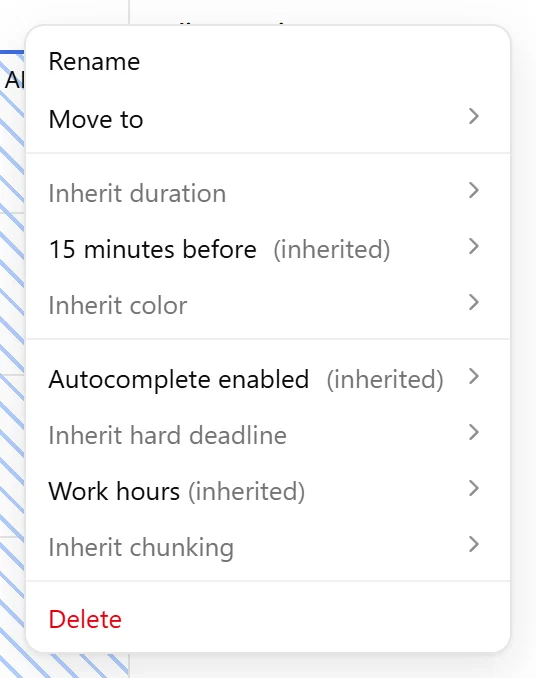
- Right-click the folder or list in the task hierarchy.
- Open the property you want to change.
- Select an available option.
- If you select Custom, choose or enter a value.
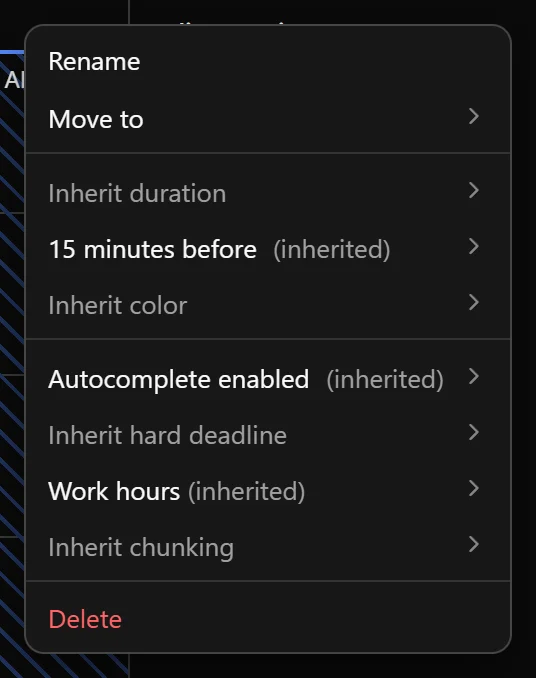
The menu shows (inherited) when the displayed value comes from a parent folder or the app settings.
Override an inherited property
For example, suppose the Work folder contains a list named Quick tasks. The folder sets an expected task duration of one hour, but you set a custom duration of 15 minutes for Quick tasks. Tasks in Quick tasks inherit an expected duration of 15 minutes, while tasks in other lists inside Work inherit one hour, unless they have their own duration settings.
You can also set a custom value directly on an individual task. This value takes priority over the settings inherited from its list and folders. Reset the property to Inherit when you want the task to follow the hierarchy again. See Task properties for the settings available on individual tasks.
When you change a property on a folder or list, the new value is applied to existing items that inherit it. Items with custom values remain unchanged. If the property affects scheduling, autocomplete updates the calendar accordingly. Learn more in Autocomplete.
Stop inheriting a property
To stop using an inherited setting:
- Select None for schedule to prevent tasks from inheriting a schedule.
- Select Disabled for autocomplete to prevent autocomplete from placing tasks.
- Select Disabled for chunking to keep tasks in one continuous block.
- Select No reminder for reminder to stop using the inherited reminder time.
Was this page helpful?
Your feedback helps us improve the docs.