
Vaults
Sync, backups, and recovery
Cloud sync keeps a vault’s data consistent across your devices. Backups save earlier copies that you can use for recovery. This guide explains how to check syncing, resolve changes that could not be applied, and recover a vault when needed.
Sync across devices
To access your cloud vaults on another device, install Nodify Calendar and sign in to the same Nodify account. The app discovers the account’s cloud vaults and downloads their data.
If a vault does not appear, open Settings → Vaults and select Check for new vaults beside the account. Also check whether the vault is hidden by its Visible setting.
Changes sync automatically while your device is connected and your cloud access is active. Changes made offline are saved on the device and sent when the connection returns. Autocomplete runs on the server, and its task placements sync to your devices.
Installing the app on another device does not transfer local vaults. To use an existing local vault across devices, move it to the cloud. See Manage vaults.
Check sync status
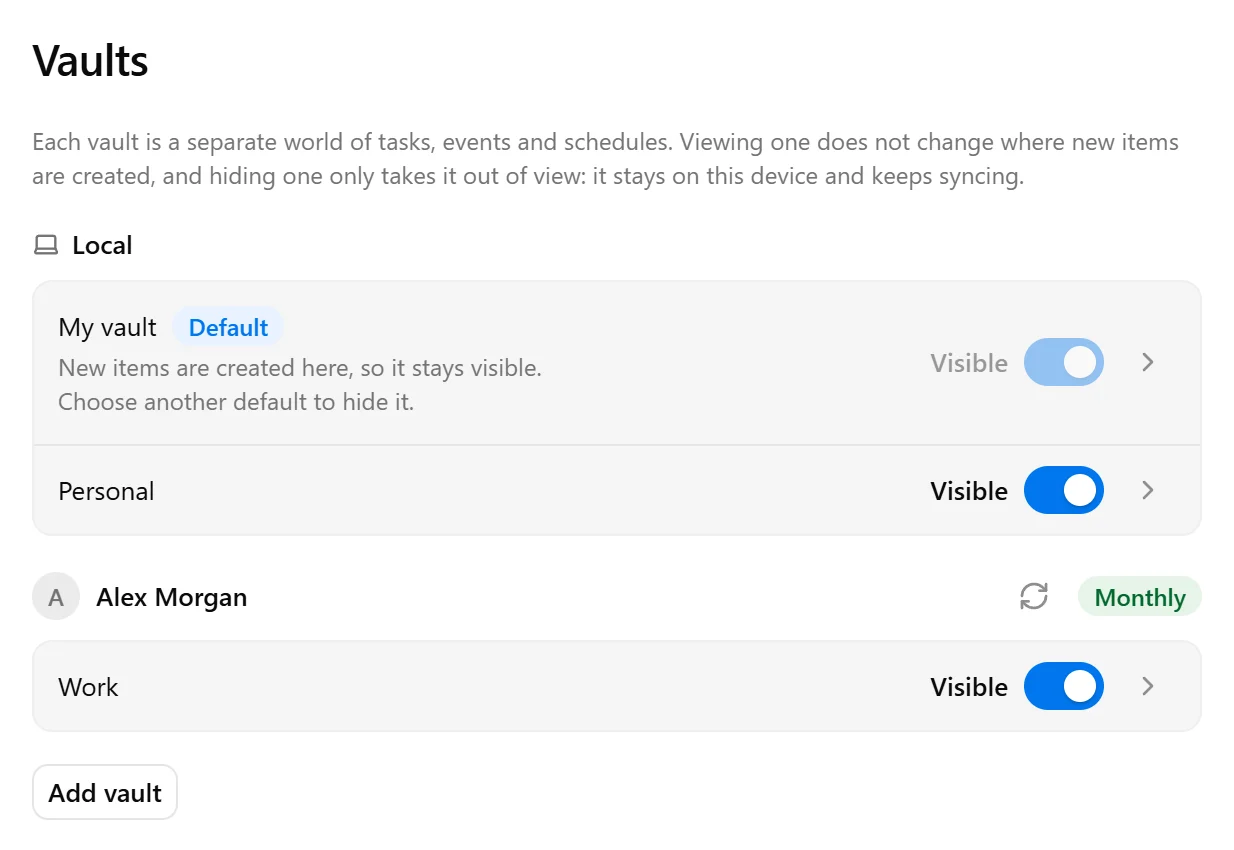
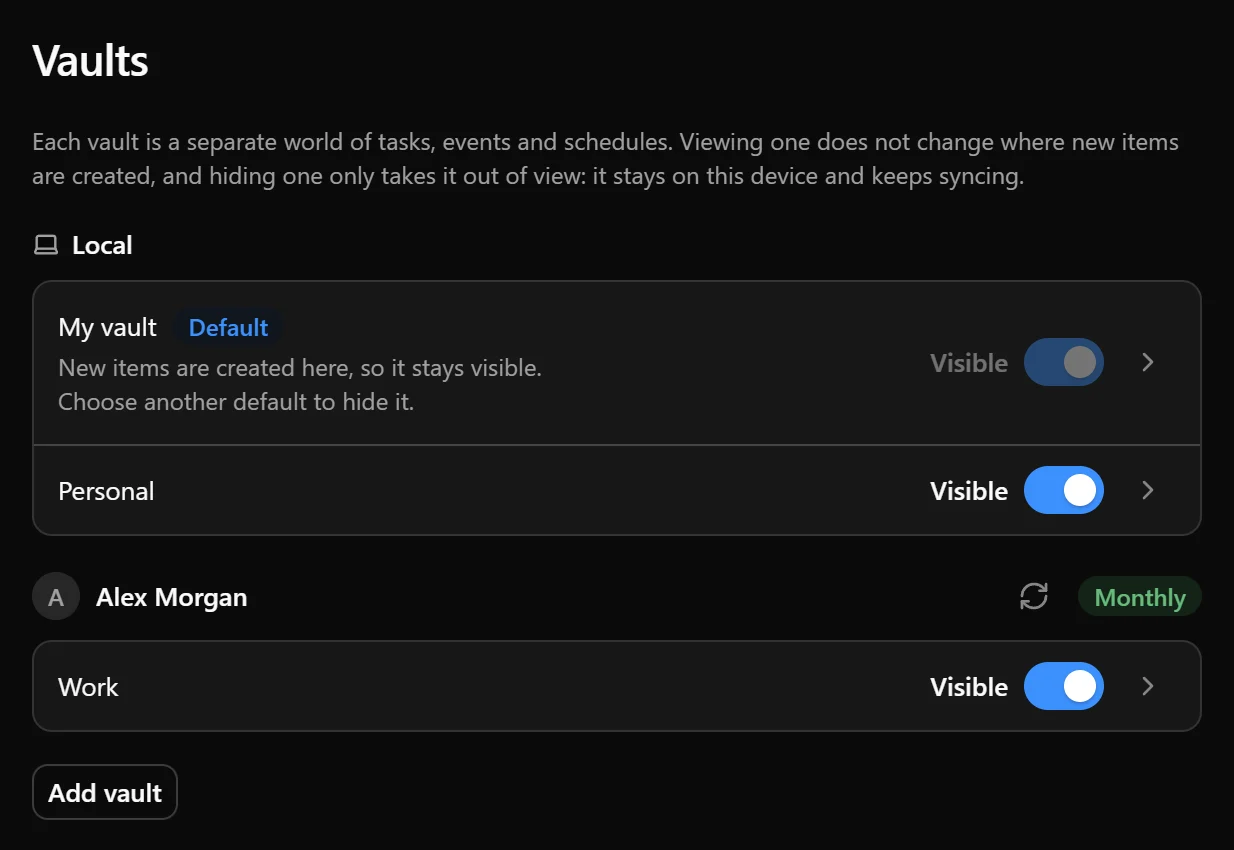
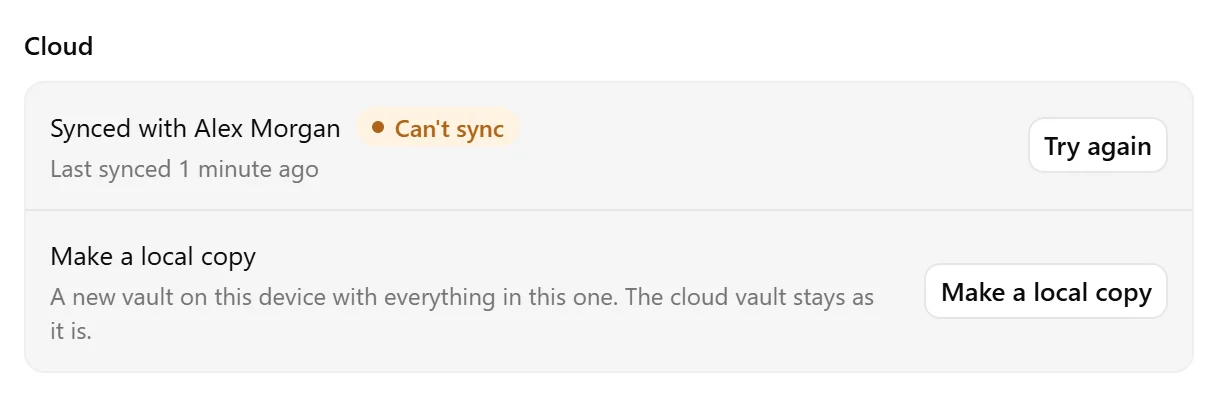
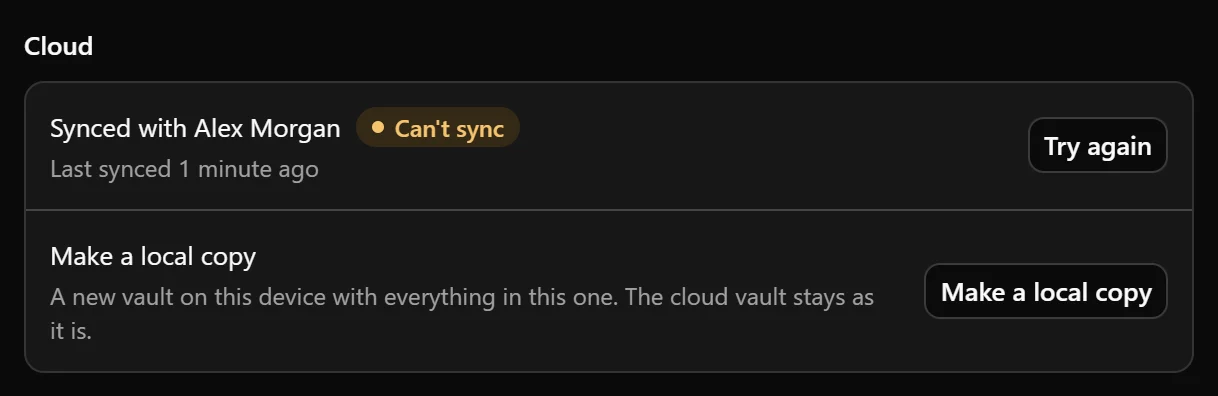
Open Settings → Vaults, then open the cloud vault. Its Cloud section shows the sync status and accompanying information about changes being sent or the last successful sync.
| Status | Meaning |
|---|---|
| Up to date | No sync or access problem is currently reported. Check the accompanying text to see whether changes are still being sent. |
| Offline | Repeated sync attempts have failed, and the device appears to be offline. |
| Can’t sync | Repeated sync attempts have failed, although the device appears to be online. |
| Update to sync | Your app version needs an update before it can sync with the server. |
| Sync paused | The server needs an update before syncing can continue. |
| Signed out | The vault’s account is signed out on this device. |
| Plan inactive — read-only | The account’s cloud plan is inactive, and the vault is read-only. |
| Not on the server | The server does not have this vault. |
| Server is missing changes | The server’s copy is older than the copy on this device. |
| Deleted from the cloud | The vault has been deleted from the cloud. |
If your device is offline, reconnect to the internet. The app then attempts to sync the changes waiting on your device. For other connection failures, select Try again when available and review any related app notice.
If the account is signed out, select Sign in again under that account in Settings → Vaults.
If the status is Update to sync, update Nodify Calendar. Pending changes can sync after the update. See Update Nodify Calendar. If the status is Sync paused, the server needs an update; retry when Try again is available.
If the plan is inactive, review the account’s plan to resume cloud access. You can also make an independent local copy and work with it locally. See Cloud plans and billing and Manage vaults.
For Not on the server or Server is missing changes, follow Recover a cloud vault that cannot sync below.
Resolve changes that could not sync
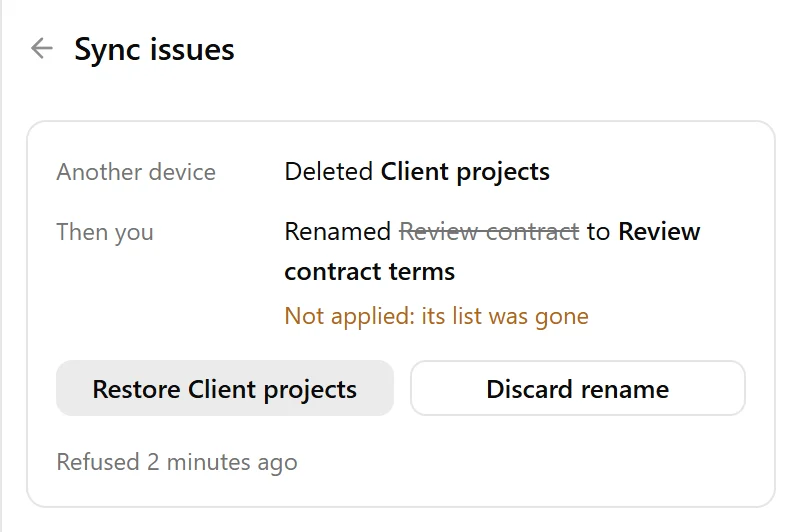
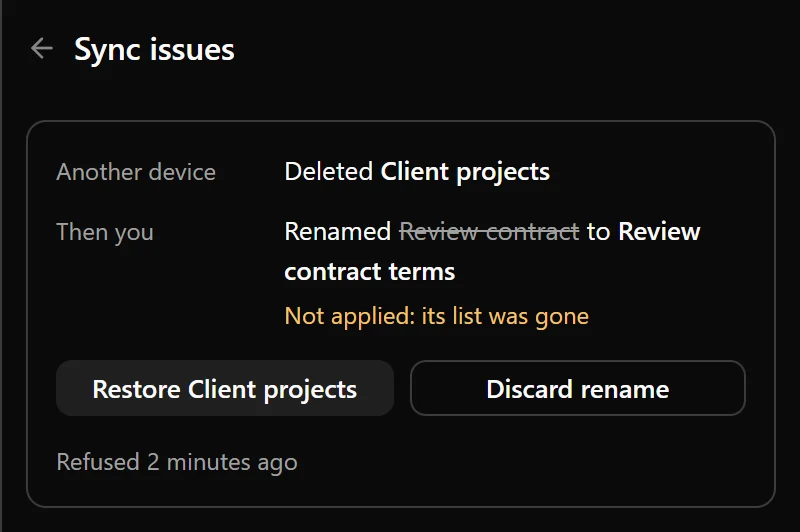
A change may fail to sync because another device changed or deleted something it depends on. For example, you may edit a task offline after another device has deleted its list.
When this happens, the app shows a sync issue notice. Select Review to open Sync issues in the Tasks tab.
Each issue explains what changed on the other device, which of your changes could not be applied, and why. Depending on the situation, you can:
- select Restore to bring back the item needed for your changes;
- select Try again to attempt applying your changes again;
- select Discard to give up the changes that could not be applied and keep the synced result.
The button text identifies the affected item or changes. Some issues cannot be restored or retried and offer only Discard.
If several changes depend on the same failed change, they are shown together. Review the whole group before deciding what to keep.
Automatic and manual backups
A backup saves a vault’s contents at a particular point in time. Backups belong to individual vaults and are stored on the device where they were created.
Nodify Calendar creates a backup every 30 minutes while it is running for vaults it can open. It keeps the three most recent regular backups for each vault. A backup made before moving a vault to the cloud is kept separately.
To create a backup yourself:
- Open Settings → Vaults.
- Open the vault you want to back up.
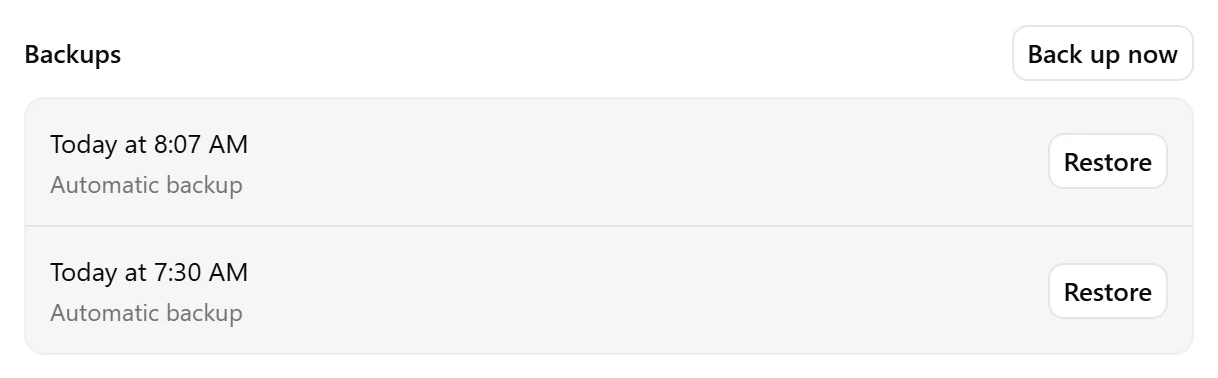
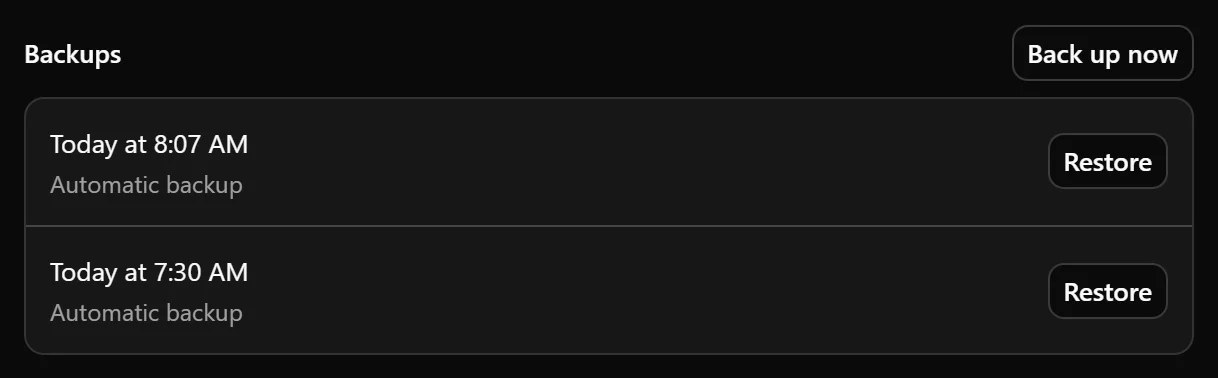
- In Backups, select Back up now.
The backup appears in the list with its creation date and time. The list can also contain copies saved before a move to the cloud or during recovery.
Backups do not automatically transfer to another device, and the app does not currently provide a general backup import or export feature. Because these copies are stored on the same device as the vault, they do not protect against losing that device.
Restore a local vault
To return a local vault to an earlier version:
- Open Settings → Vaults.
- Open the local vault.
- In Backups, find the copy you want to restore.
- Select Restore beside it.
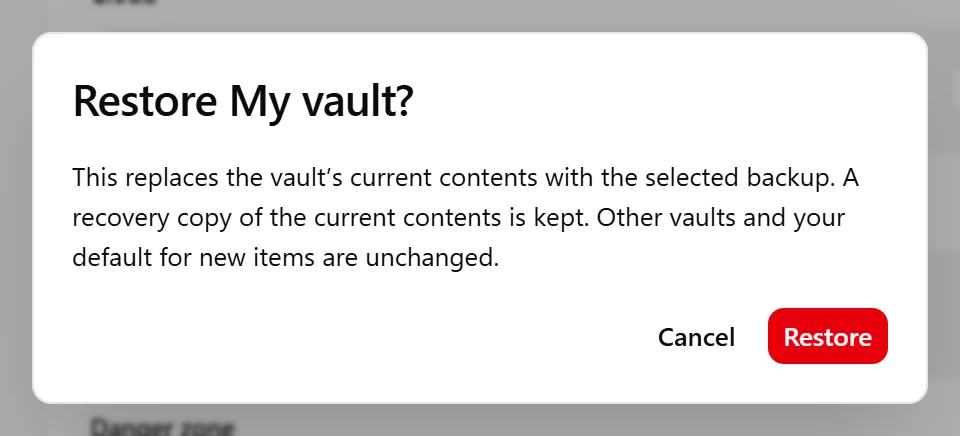
- Review the confirmation and select Restore.
Restoring replaces the vault’s current contents with the selected backup. Changes made after that backup will no longer appear in the restored vault. Before replacing the contents, the app keeps a recovery copy of the current data.
Other vaults and your default destination for new items remain unchanged.
Recover a cloud vault that cannot sync
Cloud vaults cannot be restored with Restore during normal operation. If the server’s copy is missing or older than the copy on your device, the app offers recovery options that replace the server’s data or keep the vault locally.
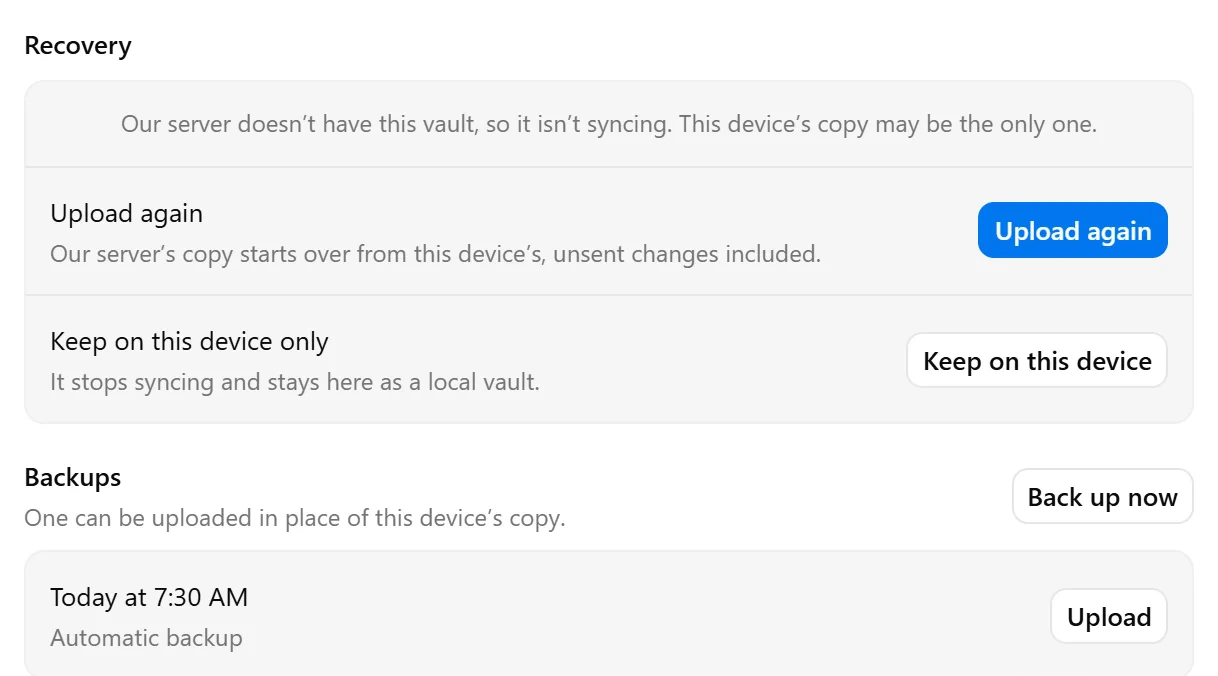
If the status is Not on the server or Server is missing changes, open the vault in Settings → Vaults and review its Recovery section. Choose an option based on which copy contains the data you want to keep.
To use the current copy on this device, select Upload again and review the confirmation. The server’s copy is replaced with this device’s contents, including changes that have not yet synced.
To use a backup instead, find it in Backups and select Upload. The server and connected devices take the backup’s contents. Changes made after that backup on this device are lost.
After either upload, other devices receive the replacement and attempt to send their own pending changes. Data previously synced from another device but missing from the replacement copy is lost.
If you want to stop syncing this vault and keep the data on this device, select Keep on this device. The vault becomes local with the contents currently shown here. Other devices keep their own copies.
If no vault can be opened
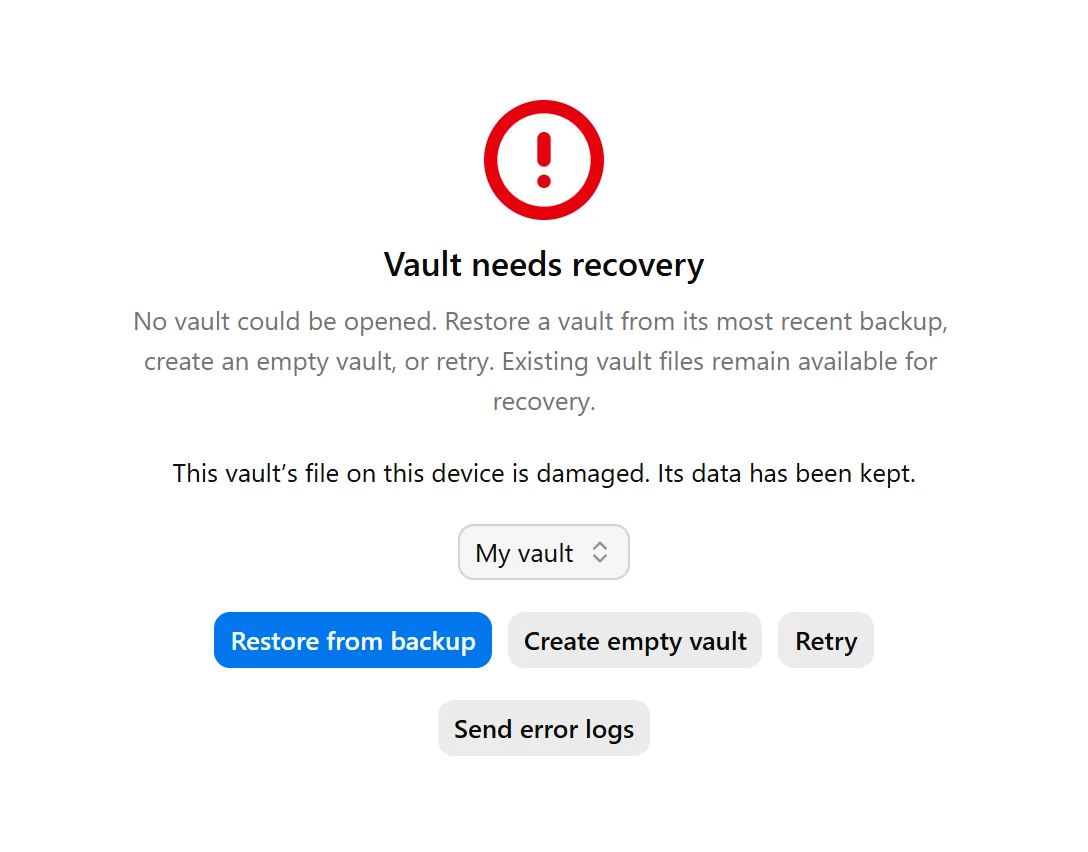
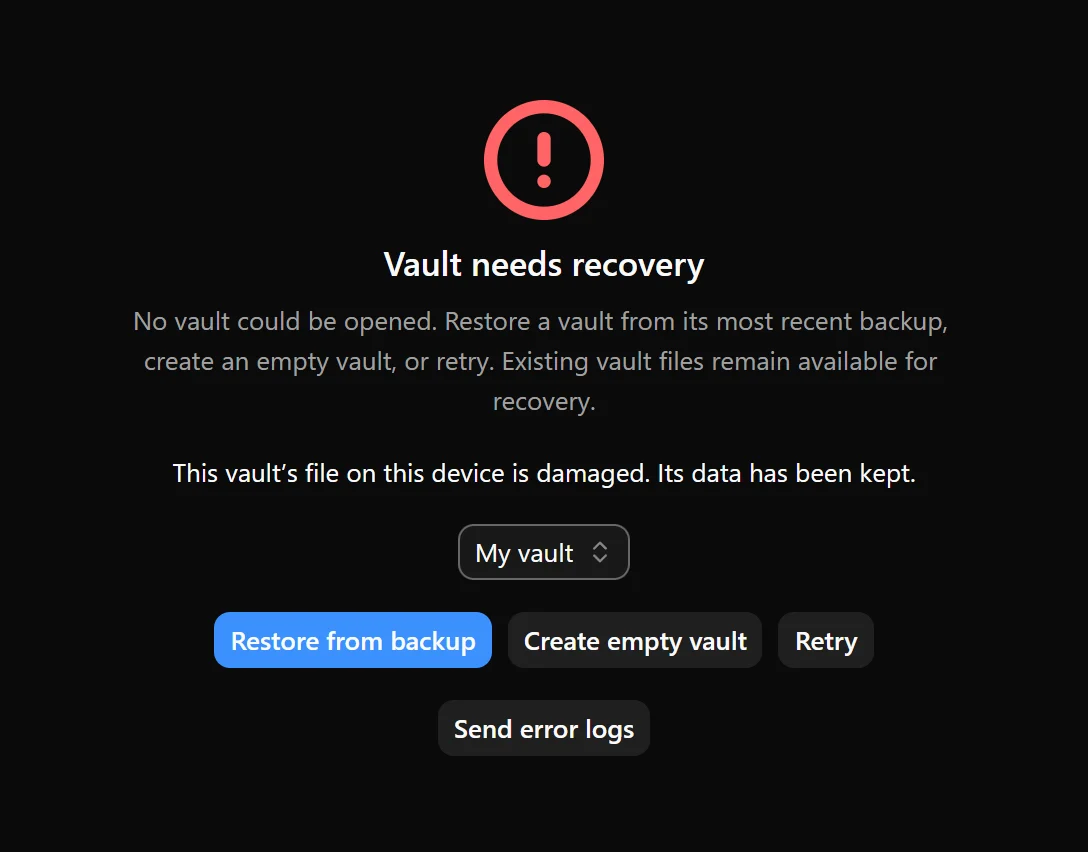
If the app cannot open any vault, it shows Vault needs recovery.
Choose the vault you want to recover, then select Restore from backup to restore its most recent available backup. This action is unavailable if the selected vault has no backup.
You can also select Retry to try opening the vaults again, or Create empty vault to continue with a new vault. Creating an empty vault does not delete the existing vault files; they remain available for recovery.
If recovery fails, review the error shown on the screen. You can use the option to send error logs when contacting support.
Was this page helpful?
Your feedback helps us improve the docs.