
Account and cloud subscription
Cloud plans and billing
This guide explains how to choose a cloud plan, manage payments, and understand what happens when cloud access ends.
Choose a cloud plan
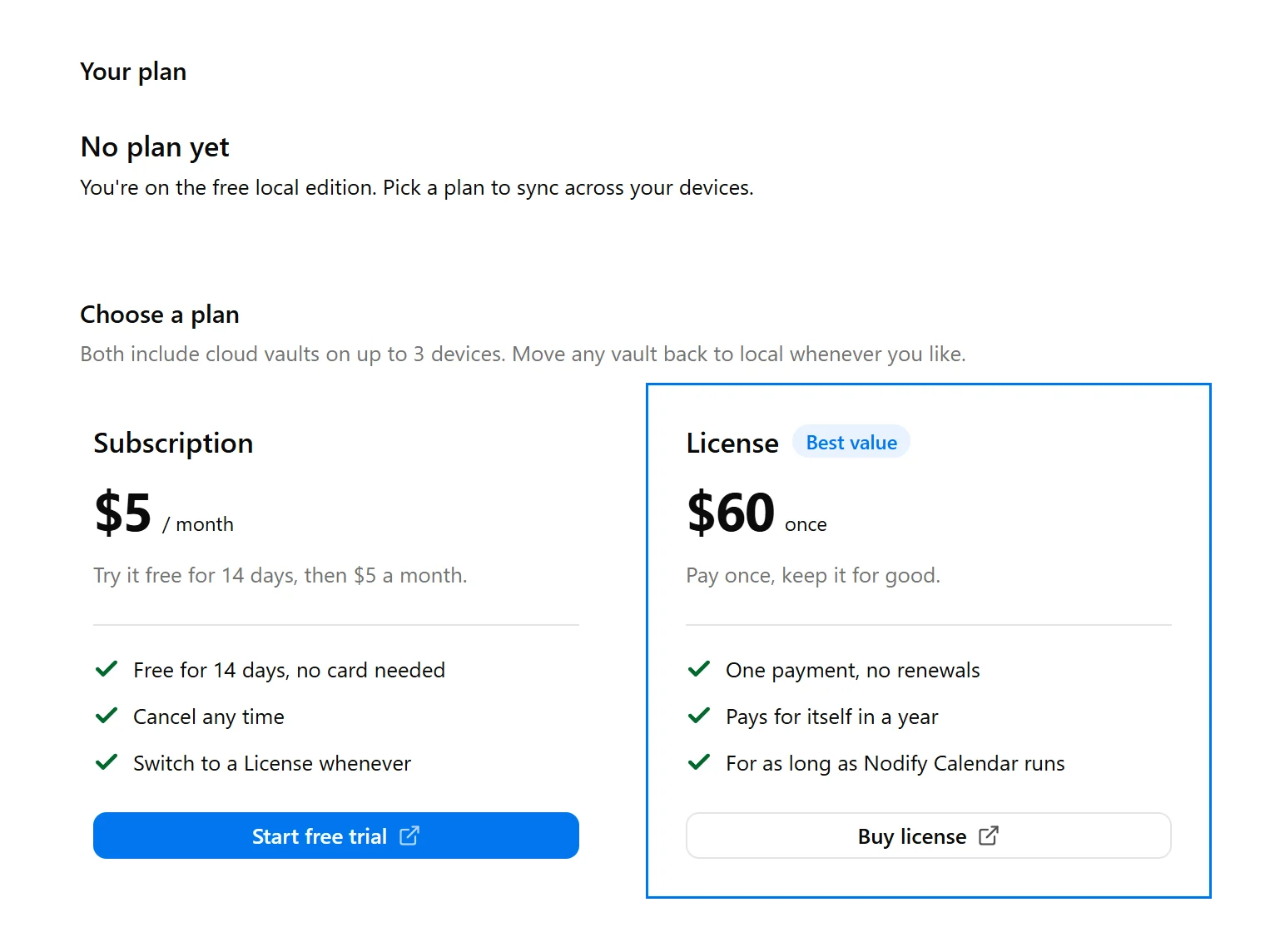
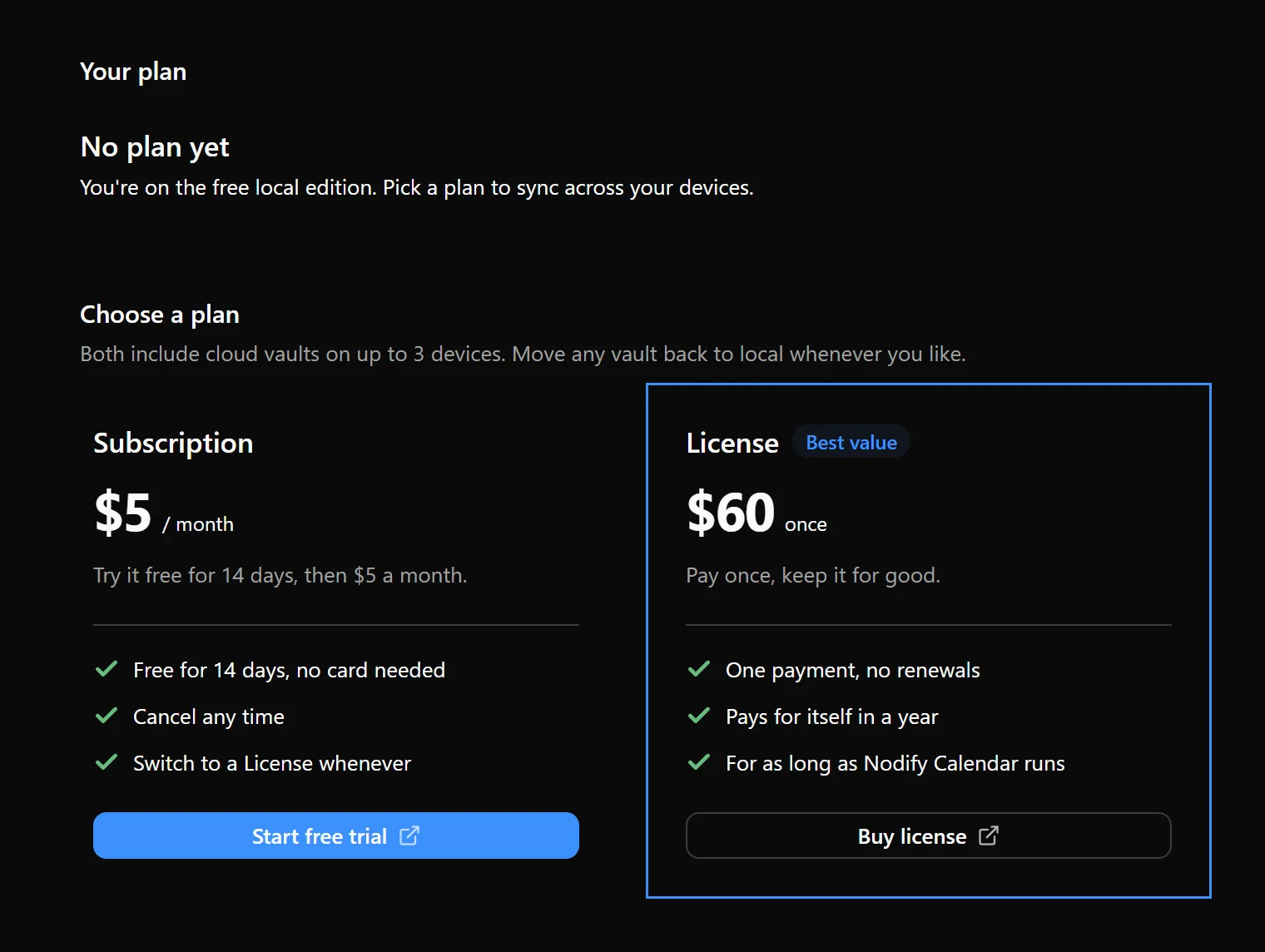
Cloud access is available through a monthly subscription or a one-time license.
A subscription renews monthly while it is active. A one-time license is paid for once rather than through recurring payments. Review the available offers in Nodify Account for prices and access terms.
Each plan belongs to a Nodify account. If you use several accounts in Calendar, open the account you want to use for cloud access before selecting a plan.
Start a trial or purchase a plan
To review the available offers:
- Open Settings → Account.
- Open the account you want to use.
- Select the plan button in Plan to open Nodify Account in your browser.
- Review the available offers and follow the instructions in the browser.
- Return to Calendar to check the updated plan status.
If a free trial is offered, review its duration and conditions before starting it. Calendar shows Free trial and its end date when this information is available.
Once cloud access is active, you can create a cloud vault or move an existing local vault to the cloud. See Manage vaults.
Check your plan and usage
Open Settings → Account and select the account. Its Plan section shows the current status and, when available, the renewal or end date.
| Status | Meaning |
|---|---|
| Free | No cloud plan is active. Local vaults remain available. |
| License | Cloud access is provided by a one-time license. |
| Subscription | A monthly subscription is active. |
| Free trial | Cloud access is available until the trial ends. |
| Subscription ending | Cloud access ends at the end of the current period. |
| Payment didn’t go through | Your payment method needs attention. |
The Devices section shows the connected-device count and limit. To check cloud vault usage, open Settings → Vaults and find the account’s group.


Manage payments and cancellation
For an active plan, select Manage in the account’s Plan section to open plan management in your browser. Review the available payment and subscription options there.
If Calendar shows Payment didn’t go through, select Update payment to review your payment method. If it shows Subscription ending, select Renew to review the options for continuing cloud access.
When canceling a subscription, review the confirmation and the date when cloud access will end.
When cloud access ends
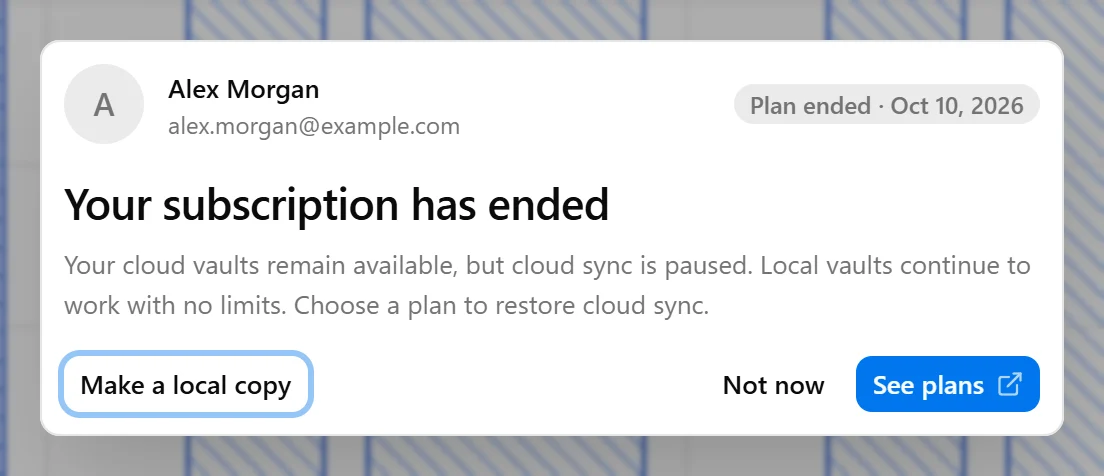
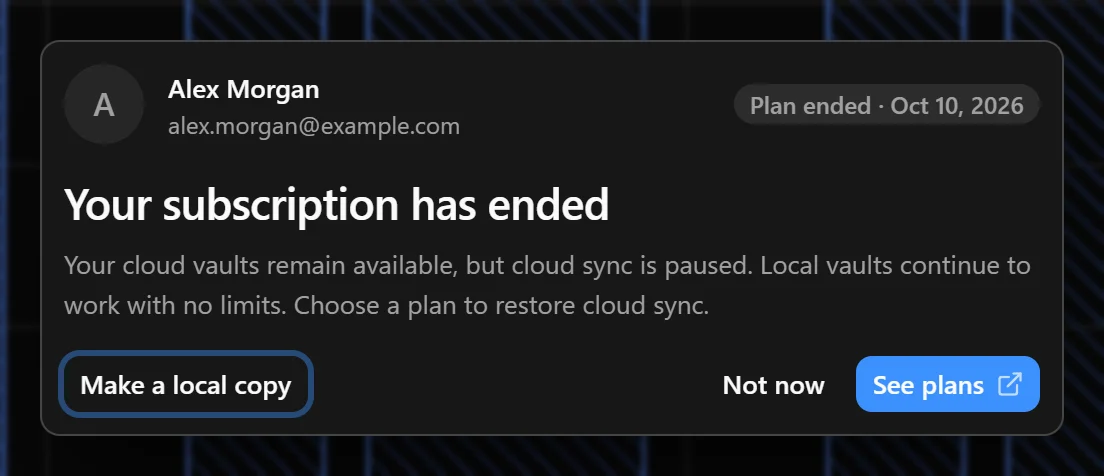
If a trial or subscription ends, or a payment problem prevents continued access, Calendar shows the account’s status and an action for restoring cloud access.
Cloud vaults already available on your device remain readable, but you cannot edit them while cloud access is inactive. Local vaults remain available without a cloud plan.
You can make an independent local copy of a cloud vault to continue working locally. See Manage vaults.
To resume cloud access, use the account’s plan action to choose a plan, renew a subscription, or update your payment method, as appropriate.
Refunds
Refund eligibility depends on the terms of your purchase. Review the conditions provided when purchasing and the applicable payment terms.
To request a refund, contact Nodify at contact@nodify.io. Include the account email and purchase information needed to identify the payment.
Canceling a subscription and requesting a refund are separate actions. Do not assume that canceling a subscription also refunds an earlier payment.
For additional information about purchases and refunds, see our Terms of Use. For information about how we handle your personal data, see our Privacy Policy.
Was this page helpful?
Your feedback helps us improve the docs.