
Vaults
Manage vaults
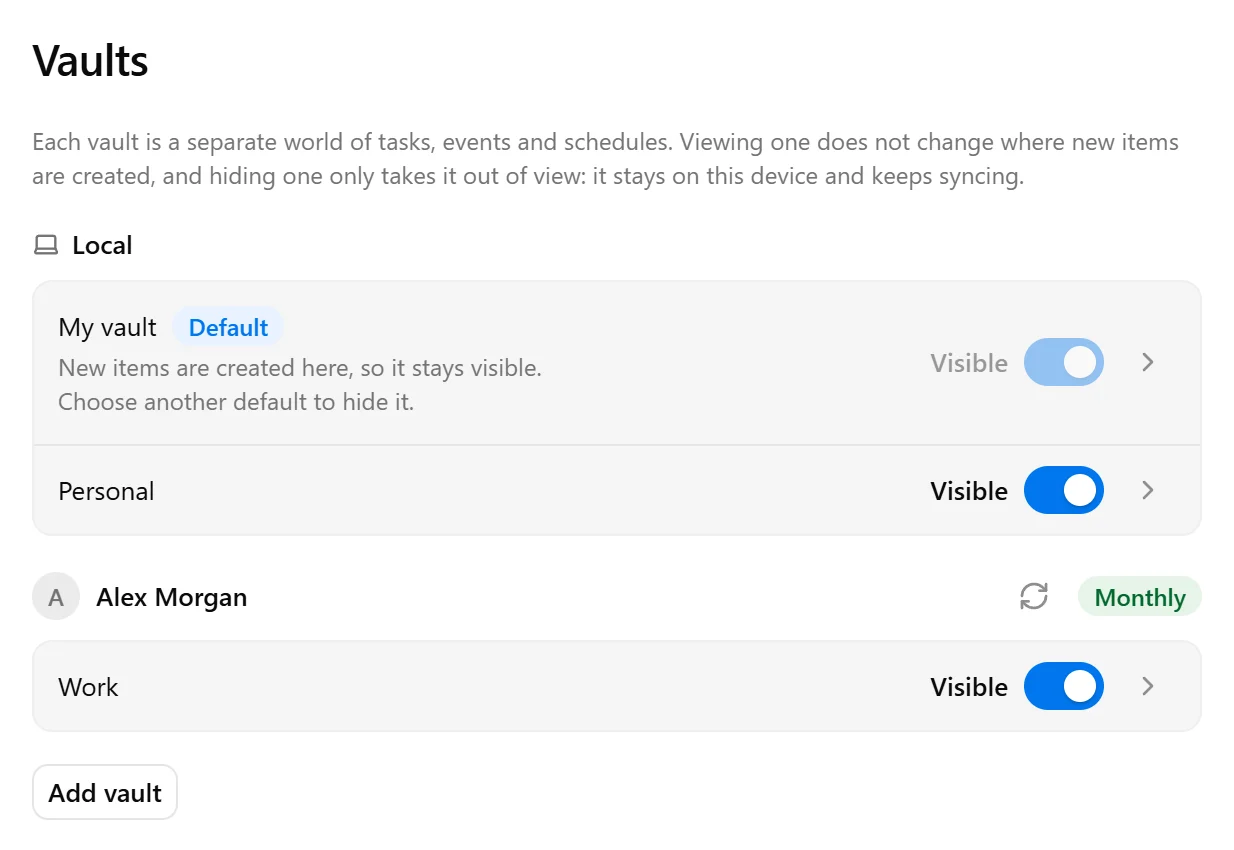
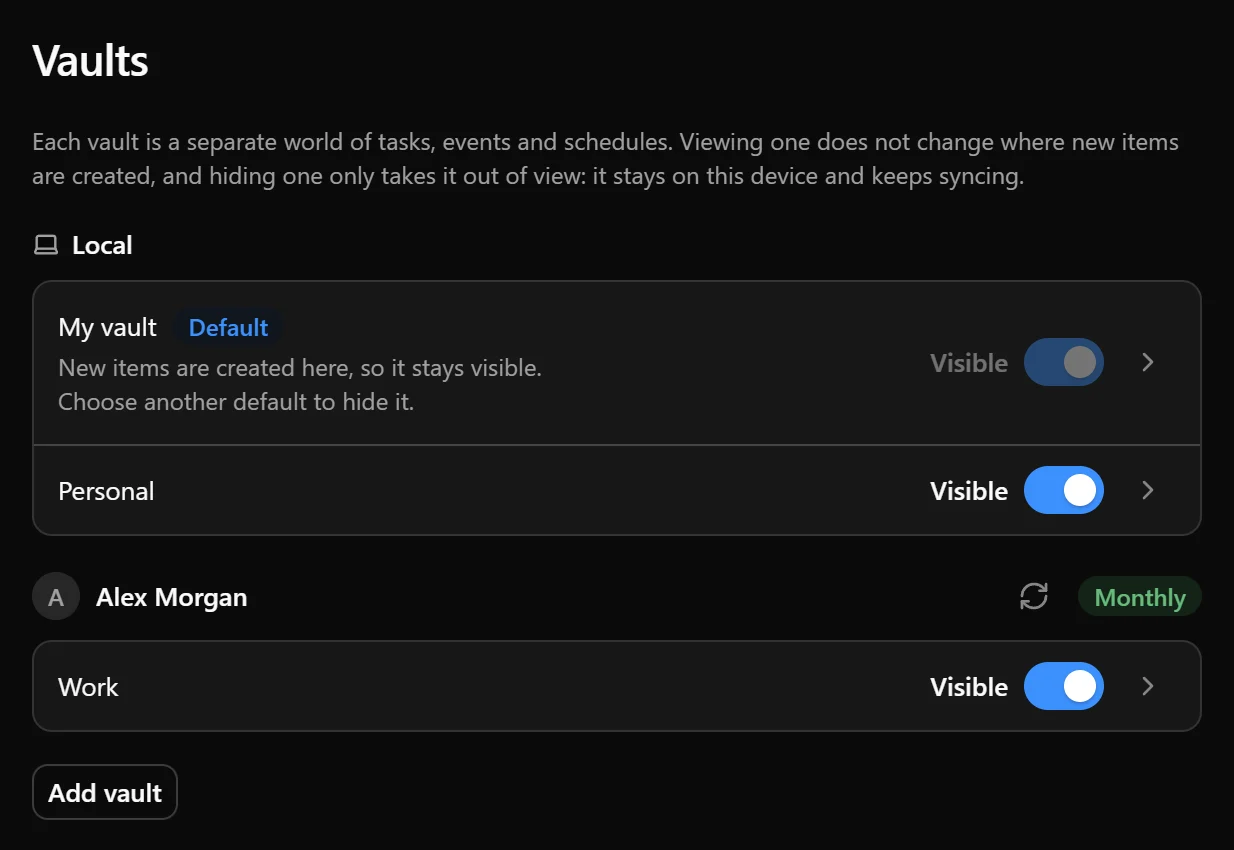
You can create vaults and manage existing vaults from Settings → Vaults. You can also open the vault selector in Tasks, Events, or Schedules and select Manage vaults.
Create a vault
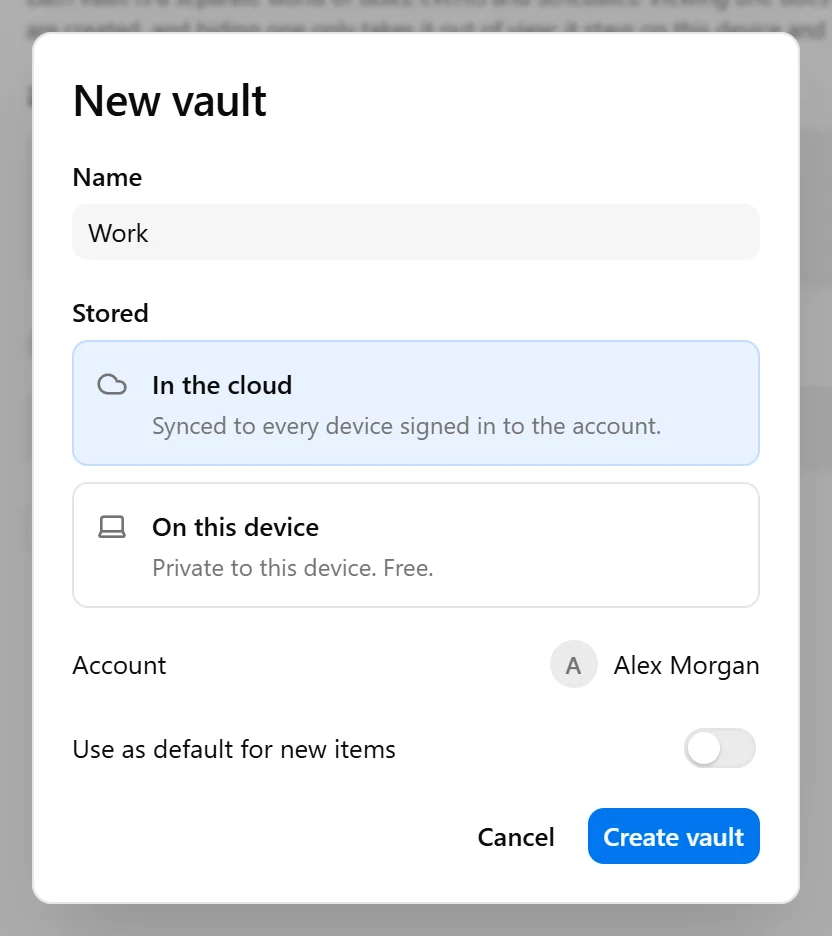
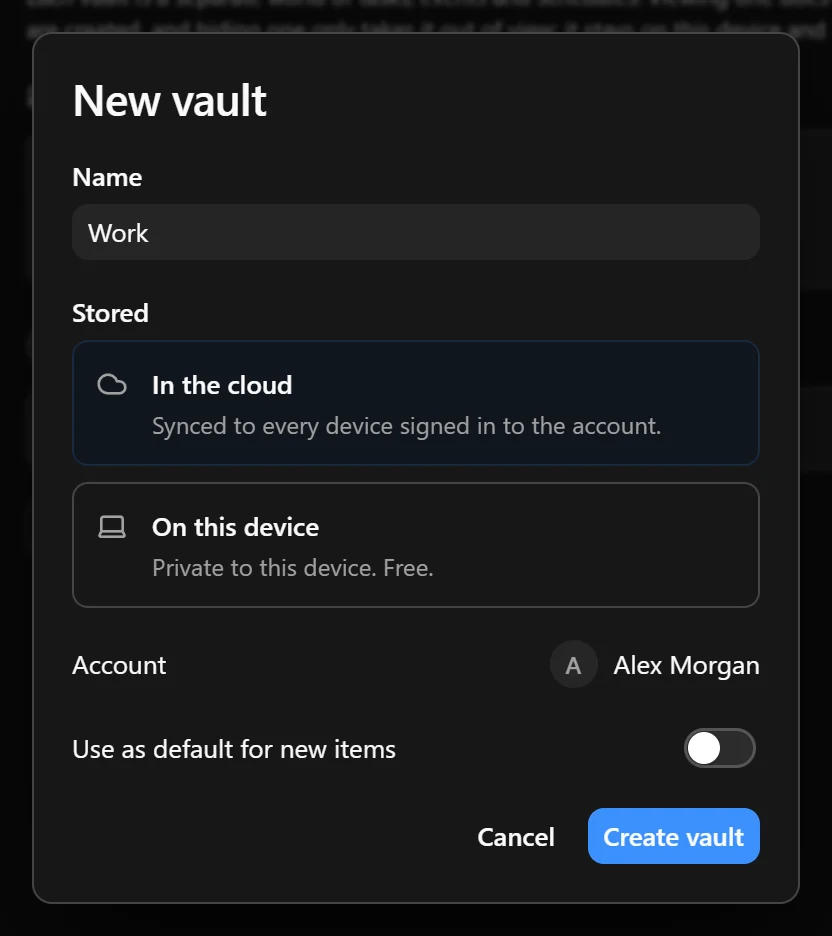
To create a vault:
- Open the vault selector in Tasks, Events, or Schedules and select Add vault. You can also open Settings → Vaults and select Add vault.
- Enter a name.
- Choose On this device for a local vault or In the cloud for a cloud vault.
- For a cloud vault, select the Nodify account it should belong to.
- Enable Use as default for new items if you want the creation panel on the calendar to start with this vault.
- Select Create vault.
Cloud vaults require an account with an active cloud plan and room for another vault. If you need to set up cloud access, see Account and cloud subscription.
The new vault opens after it is created. If you have unsaved edits, save or discard them before creating it.
Switch vaults and choose where new items are created
Use the vault selector in the right sidebar to choose the vault you work with in Tasks, Events, or Schedules. Items you create from these tabs belong to the selected vault, and edits apply to items in that vault. Save or discard any unsaved edits before switching.
When you create an item directly on the calendar, the creation panel starts with your default vault. Check the destination and choose another vault if needed. Switching vaults in the right sidebar does not change this default.
To change the default:
- Open Settings → Vaults.
- Open the vault you want to use.
- Find Default for new items.
- Select Set as default.
The creation panel on the calendar now starts with this vault unless you choose another destination. Creating items from the right sidebar still uses the vault selected there.


Choose which vaults appear
Use the vault filter in the left sidebar to choose which vaults’ content appears on the calendar. You can display several vaults together without combining their data.
In a narrow window, open the vault selector while viewing the Calendar tab to choose which vaults appear. In the Tasks, Events, and Schedules tabs, the same selector switches the vault you are viewing.
To hide a vault from the available vault selectors, open Settings → Vaults and turn off Visible beside its name. The vault stays on the device and continues syncing if it is a cloud vault. Turn Visible back on to show it again.
The default vault must remain visible. To hide it, first set another vault as the default for new items.
Rename a vault
Open Settings → Vaults, then open the vault you want to rename. Change its Name and press Enter or click outside the field to save.
Move a vault to the cloud
You can move a local vault to the cloud with its existing tasks, events, and schedules.
- Open Settings → Vaults.
- Open the local vault.
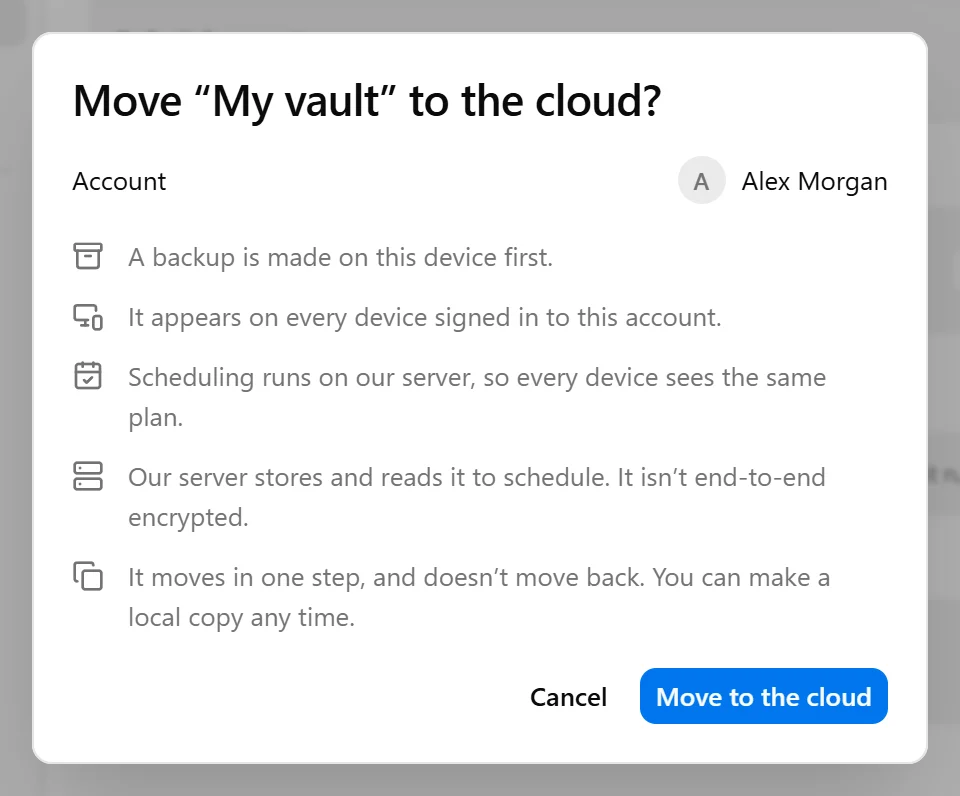
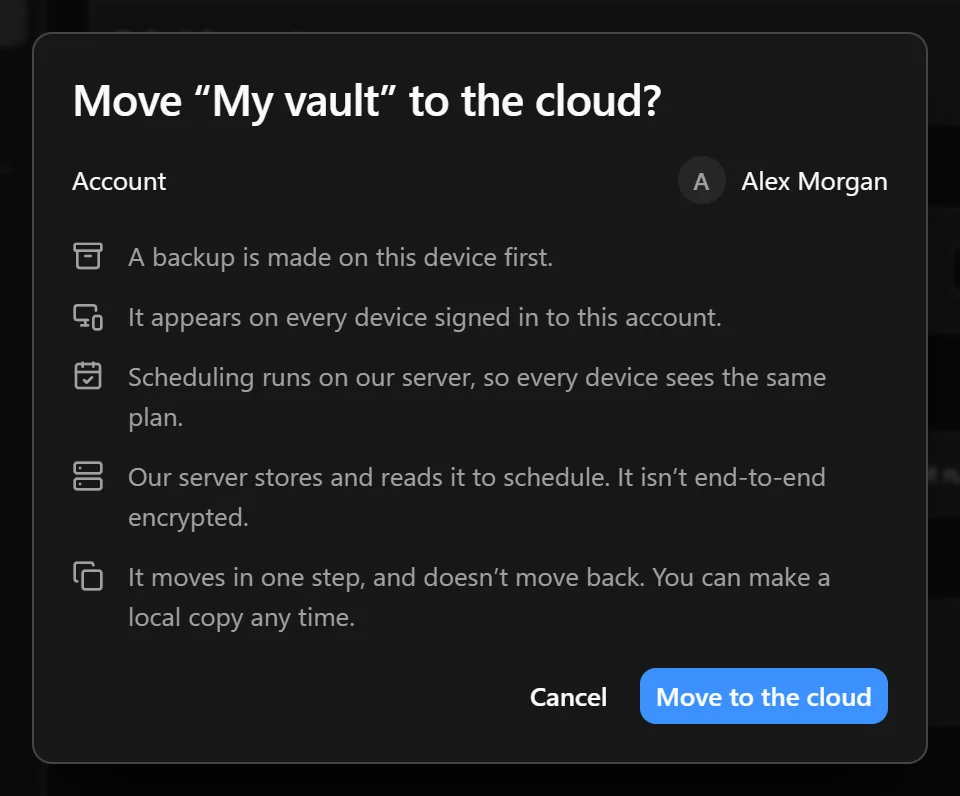
- Select Move to the cloud.
- Check the account selected in the confirmation dialog.
- Select Move to the cloud to confirm.
The app creates a backup on this device before moving the vault. Once the move is complete, the vault syncs across devices signed in to the selected account, and autocomplete runs on the server.
If the move does not finish, open the vault’s settings and select Try again under Didn’t finish. If the vault is still local, you can select Cancel to cancel the move and keep it on this device.
Moving a vault to the cloud does not provide a direct move back to local storage. You can make an independent local copy at any time.
Make a local copy
To make a local copy of a cloud vault:
- Open Settings → Vaults.
- Open the cloud vault.
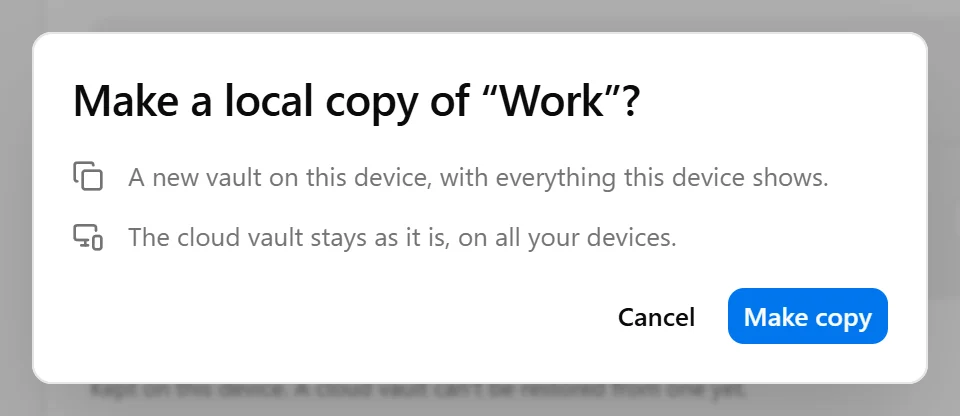
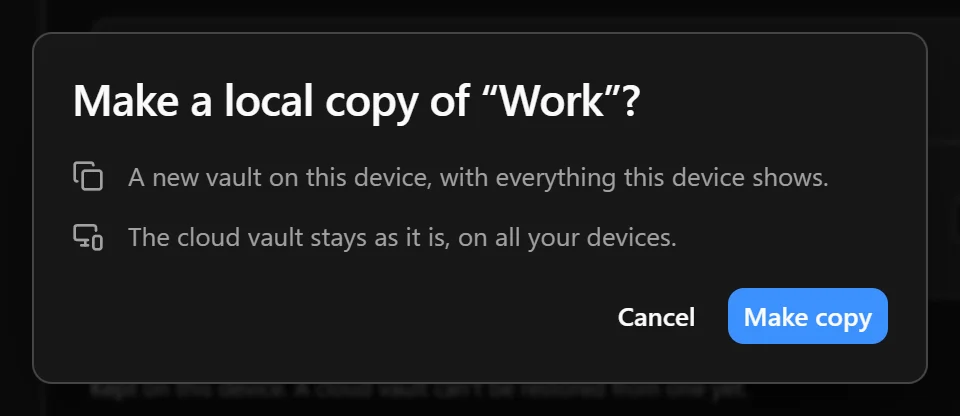
- Select Make a local copy.
- Review the confirmation and select Make copy.
The new local vault contains the data currently shown on this device, including changes that have not reached the server. It works independently and does not sync with the original cloud vault.
The cloud vault remains unchanged and continues syncing across your devices.
Delete a vault
To delete a local vault, open Settings → Vaults, open the vault, and select Delete under Danger zone. If the confirmation asks for a replacement vault, choose one, then confirm the deletion.
The vault and its backups are removed from the app, and their files are moved to recoverable storage. Other vaults remain unchanged. You must keep at least one vault, so create another before deleting your only local vault.
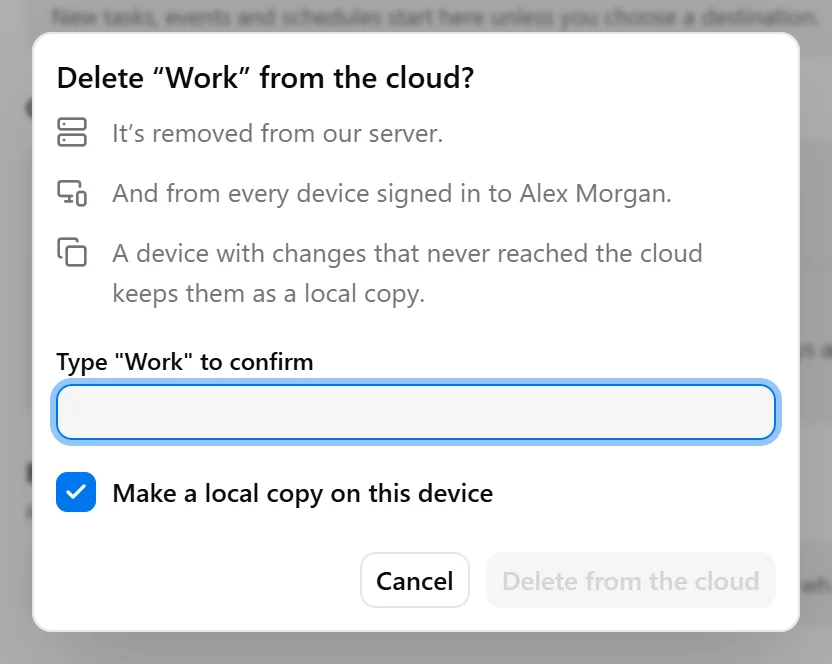
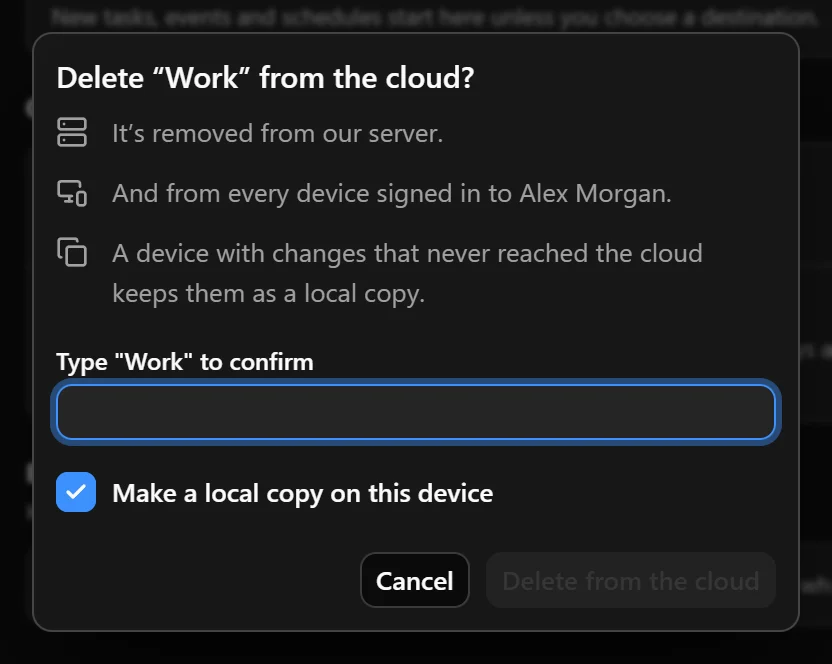
To delete a cloud vault:
- Open Settings → Vaults.
- Open the cloud vault.
- Select Delete from the cloud.
- Choose whether to keep Make a local copy on this device enabled.
- Type the vault’s name to confirm.
- Select Delete from the cloud.
This removes the vault from the server and devices signed in to its account. Keeping a local copy on the current device is enabled by default and is required if this is the device’s only vault.
If another device has changes that never reached the cloud, those changes are preserved there as a local copy.
Was this page helpful?
Your feedback helps us improve the docs.