
Vaults
Local and cloud vaults
Your tasks, events, and schedules are stored in vaults. You can keep a vault on your computer or use the cloud version to sync it across your devices.
What is a vault?
A vault keeps related tasks, events, and schedules together. You can use one vault for everything or create separate vaults for work, study, or personal activities.
Each vault works independently. Tasks use schedules from the same vault, and events affect task planning only within that vault.
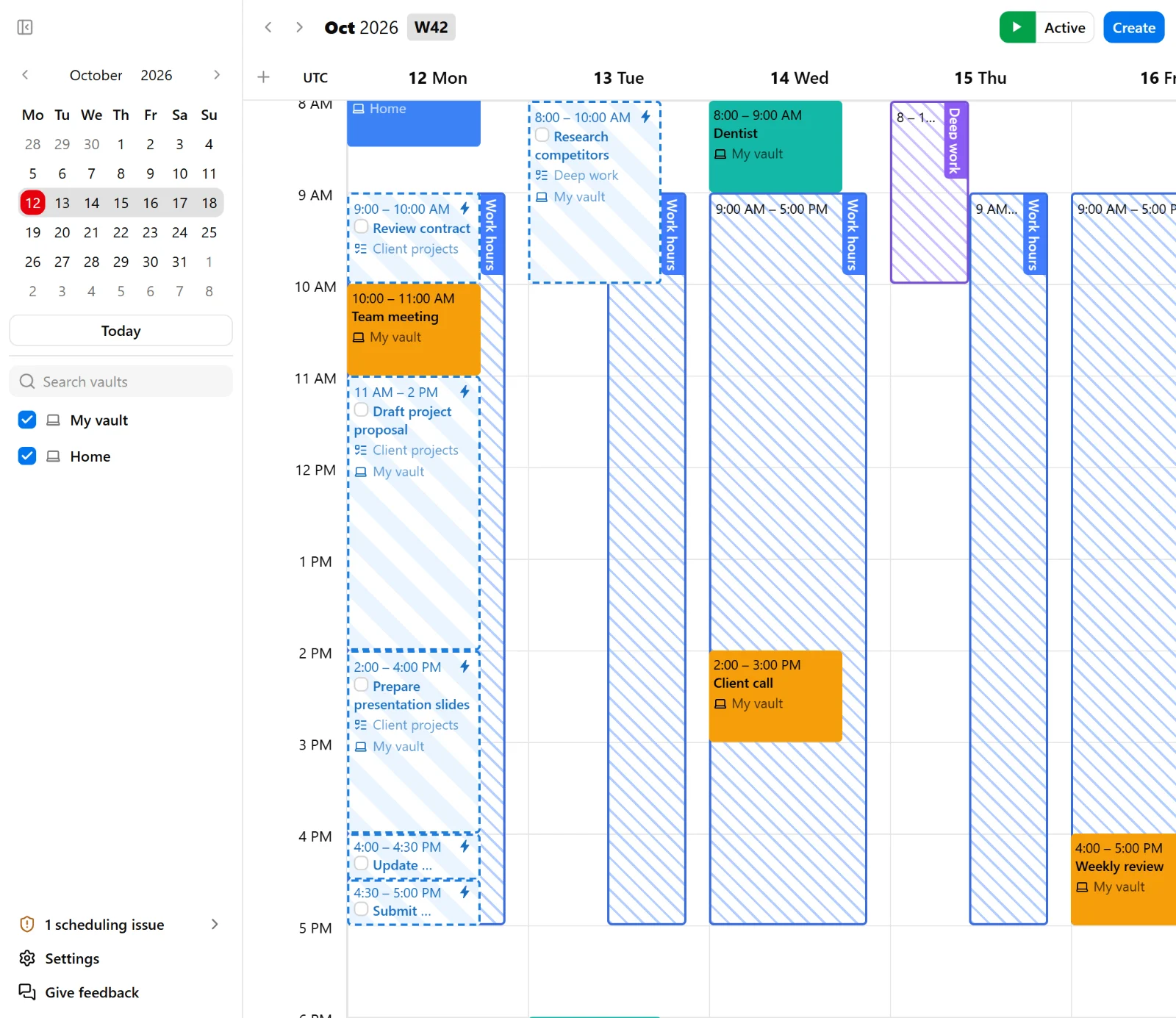
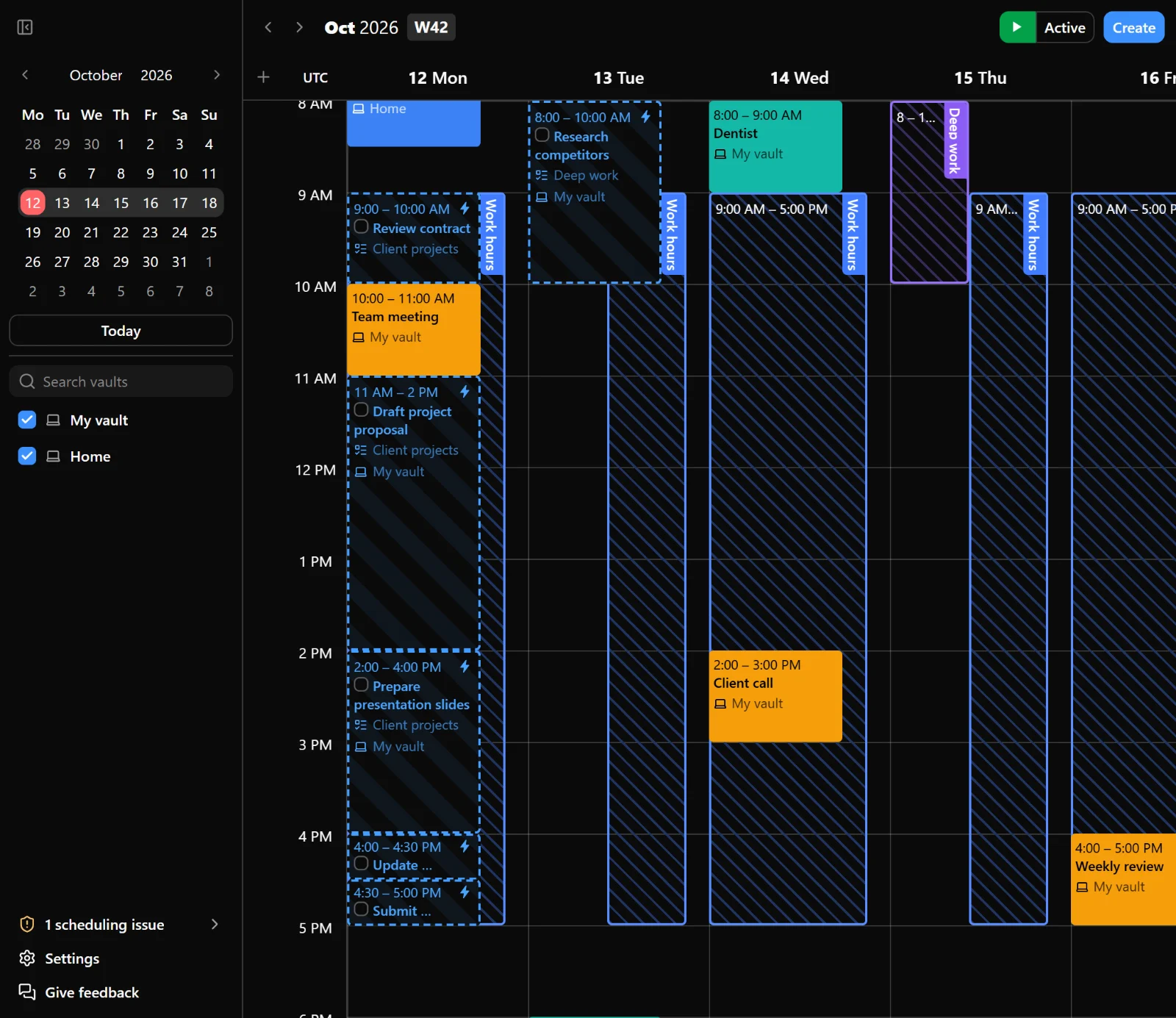
You can display content from several vaults together on the calendar while keeping their data separate. Use the vault selector in the right sidebar to choose the vault you work with in Tasks, Events, and Schedules. Items created from these tabs belong to the selected vault. When you create an item directly on the calendar, the creation panel starts with your default vault instead. Use the vault filter in the left sidebar to choose which vaults’ content appears on the calendar.
Local and cloud vaults
A local vault stores your data on your computer. The app and local vaults are free and do not require an account. Autocomplete also runs on your computer, so you can plan your week without connecting to a server.
A cloud vault syncs your data across devices signed in to the same Nodify account. Changes made on one device sync to the others. Autocomplete runs on the server, and the resulting task placements sync across your devices so they show the same plan.
Because the server needs to read your cloud vault’s data to run autocomplete, cloud vaults are not end-to-end encrypted.
Nodify Cloud requires an account and a paid plan. For additional information, see Cloud plans and billing.
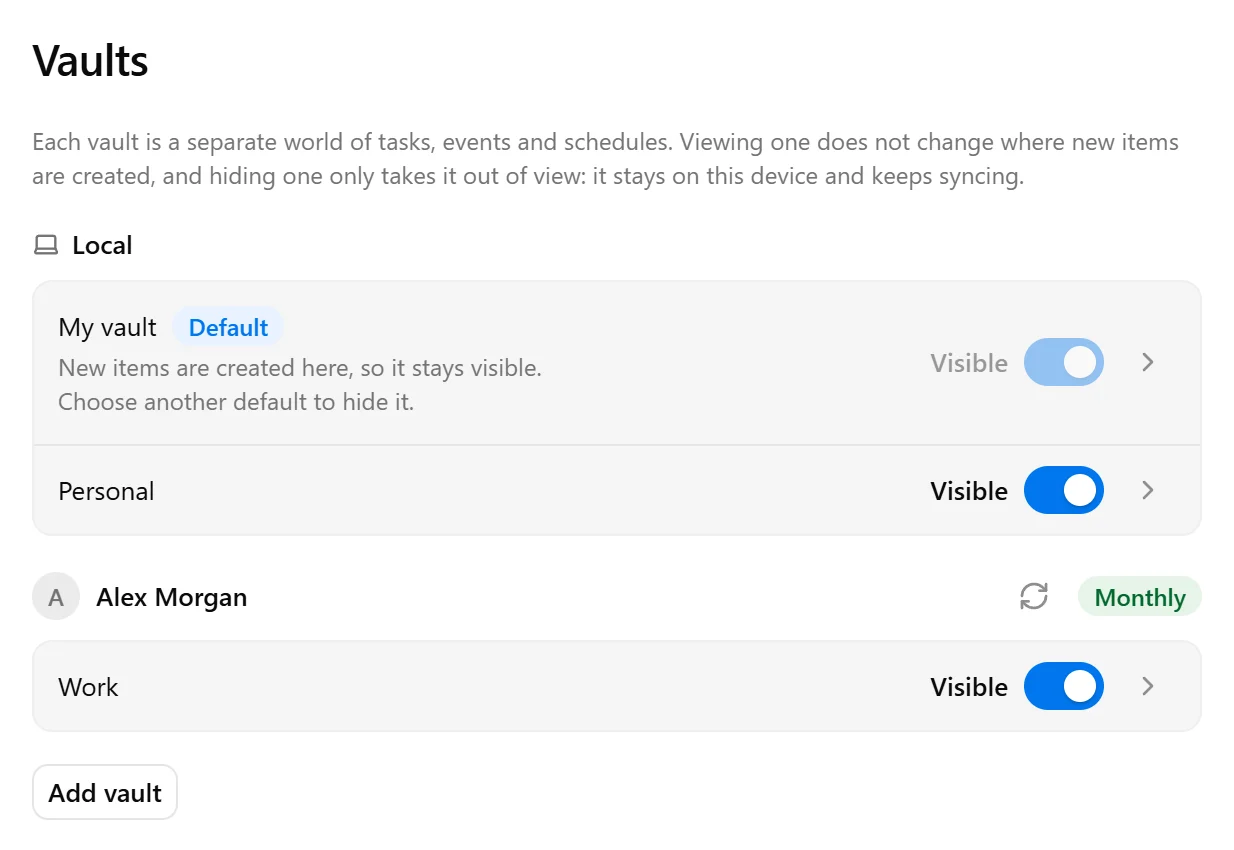
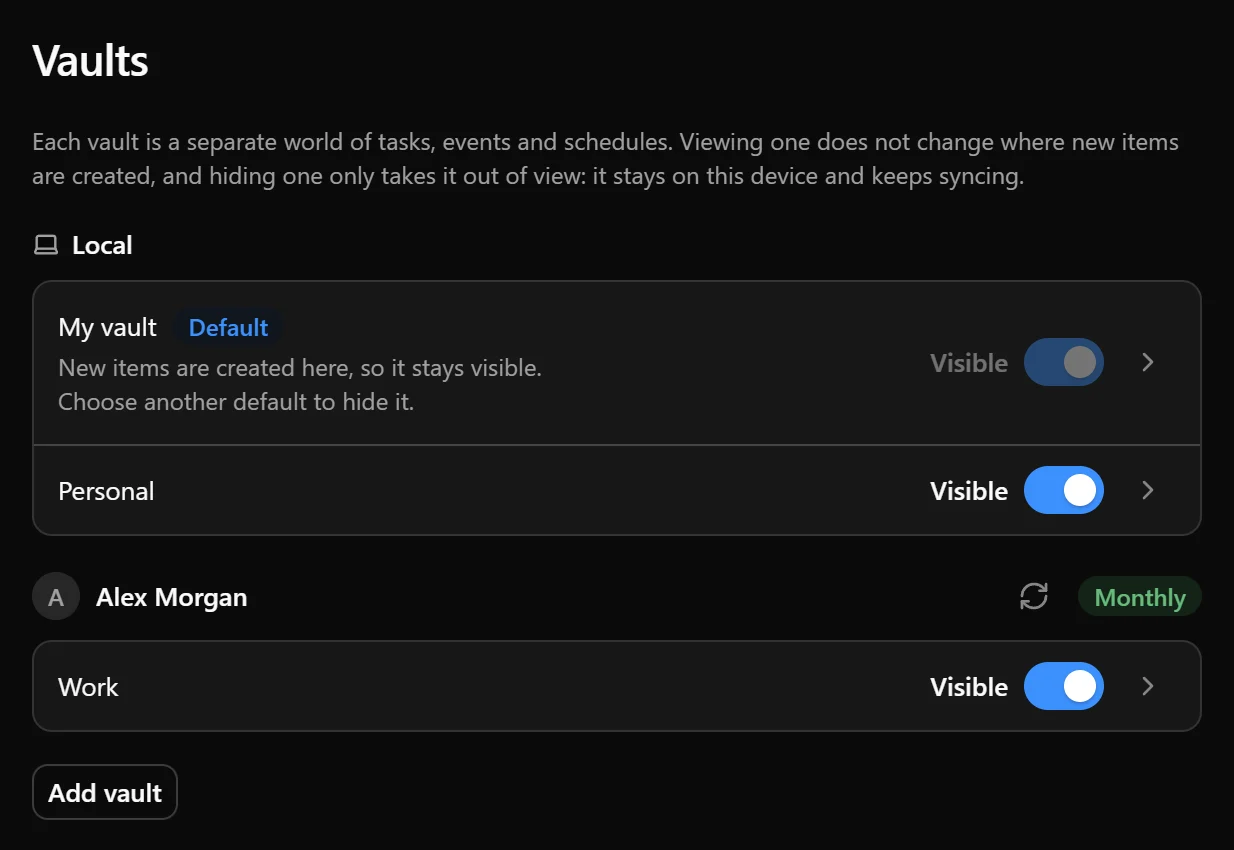
You can move an existing local vault to the cloud or make an independent local copy of a cloud vault. The local copy does not sync with the original cloud vault. See Manage vaults for these actions and Account and cloud subscription for setting up cloud access.
Work offline
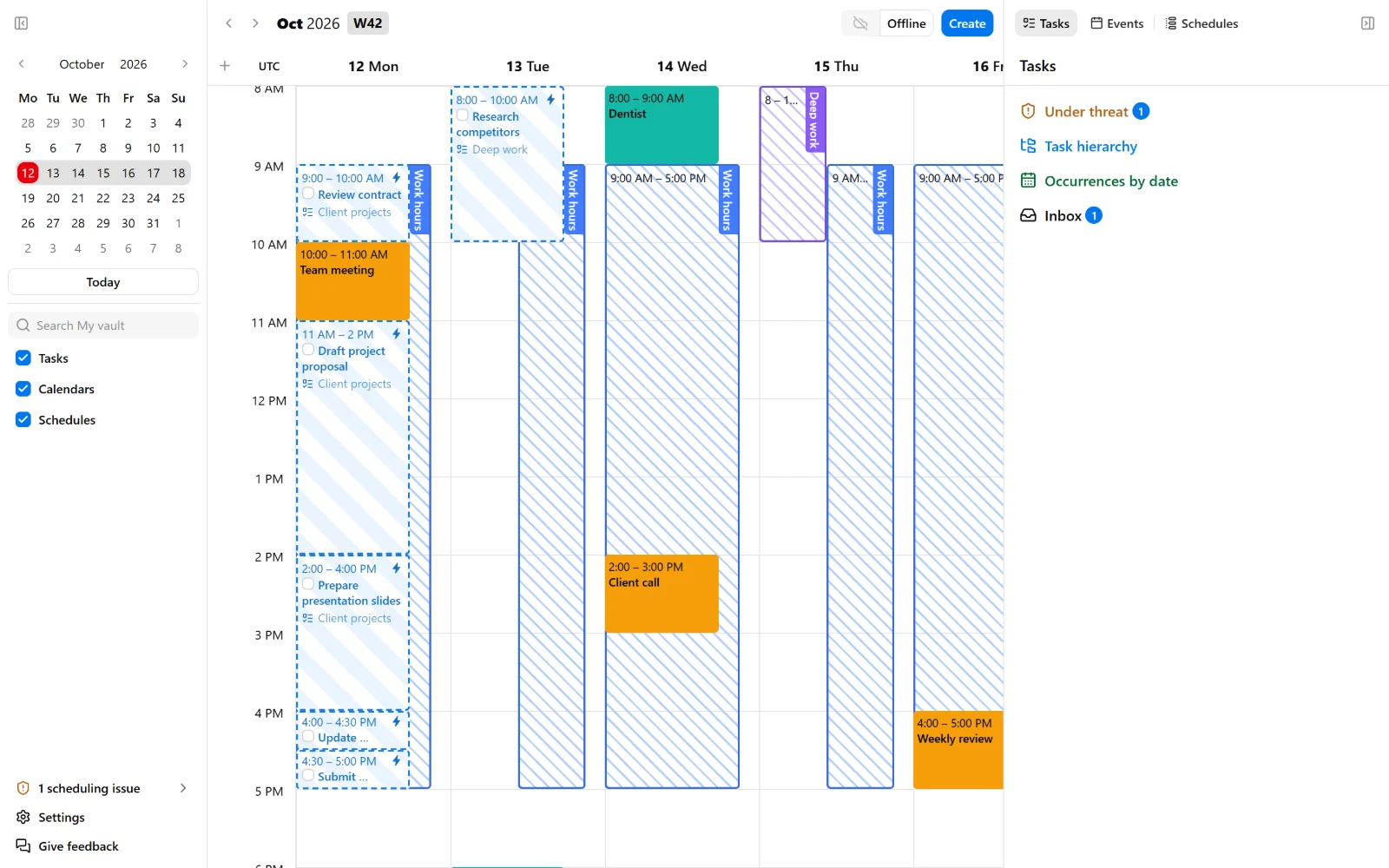
A local vault works without an internet connection. You can create and edit tasks, events, and schedules, and autocomplete updates your plan on your computer while Nodify Calendar is running.
A cloud vault keeps a copy of its data on each connected device. With an active cloud plan, you can create and edit tasks, events, and schedules on that device even without an internet connection. Your changes are saved locally and sync when you reconnect.
Autocomplete does not update task placements for a cloud vault while your device is offline. You can still make manual changes to the calendar, but automatic placements remain as they were last received from the server. After you reconnect, your changes sync to the server, where active autocomplete updates the plan. The resulting placements then sync back to your devices.
For connection problems or changes that could not sync, see Sync, backups, and recovery.
Was this page helpful?
Your feedback helps us improve the docs.