
Account and cloud subscription
Manage connected devices
You can manage the devices connected to each Nodify account from Calendar. Removing a device signs that account out on the device and frees a place for another one.
View connected devices
Open Settings → Account, select the account, and find Devices.
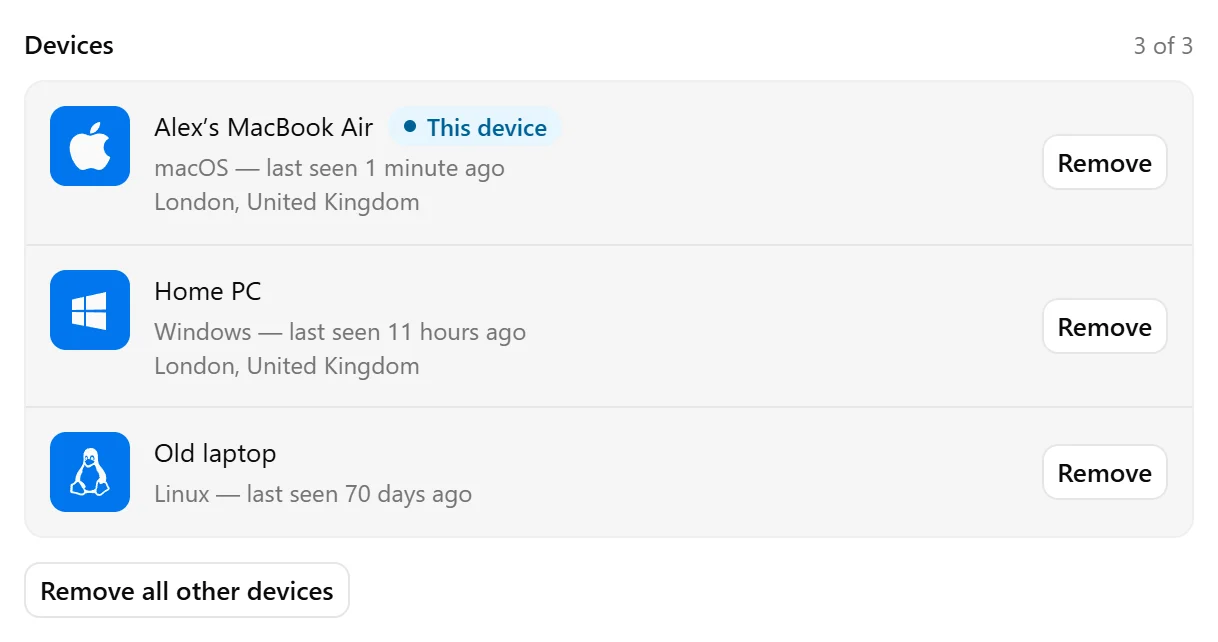
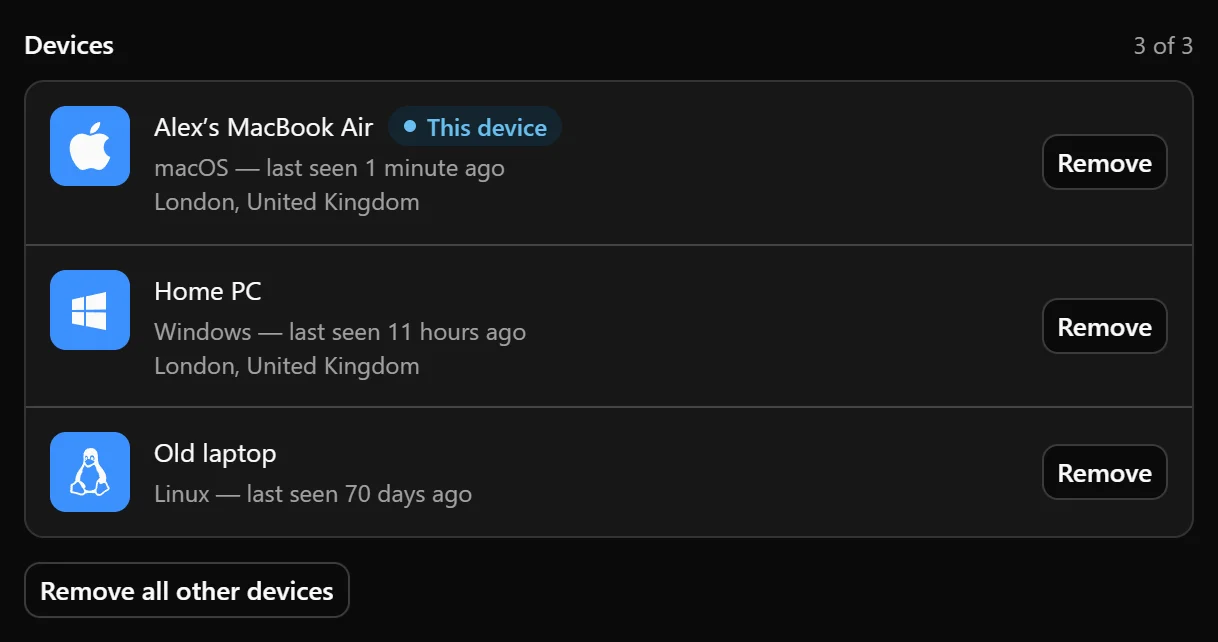
Each entry shows the device’s name, operating system, and when it was last seen. Location information appears when available. The device you are using is marked This device.
A Nodify account can be connected to up to three devices at the same time. The Devices section shows how many places are in use and how many remain available. If you use several accounts, each has its own device list and limit.
Connect another device
Install Nodify Calendar on the other device and sign in with the same Nodify account. For the sign-in steps and one-time code option, see Create and manage your account.
Once connected, Calendar downloads the account’s cloud vaults. Local vaults stay on the computer where they were created and do not transfer automatically.
If you have reached the device limit, remove a device you no longer use before connecting another one.
Remove a device
To remove a connected device:
- Open Settings → Account.
- Select the account.
- In Devices, find the device and select Remove beside it.
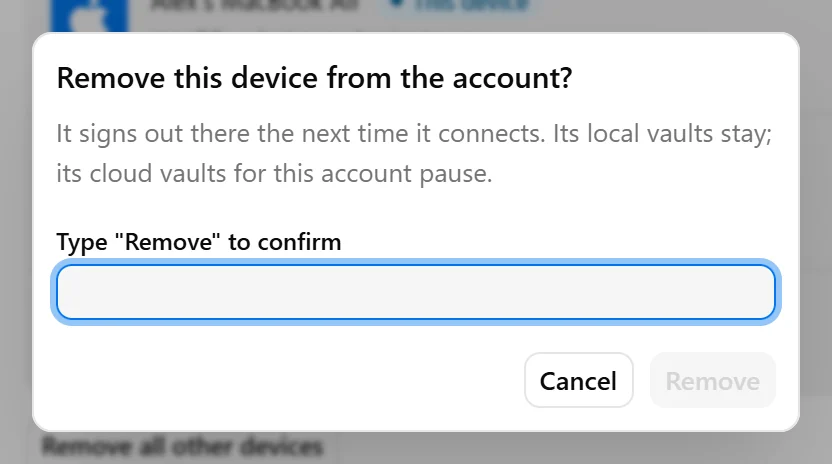
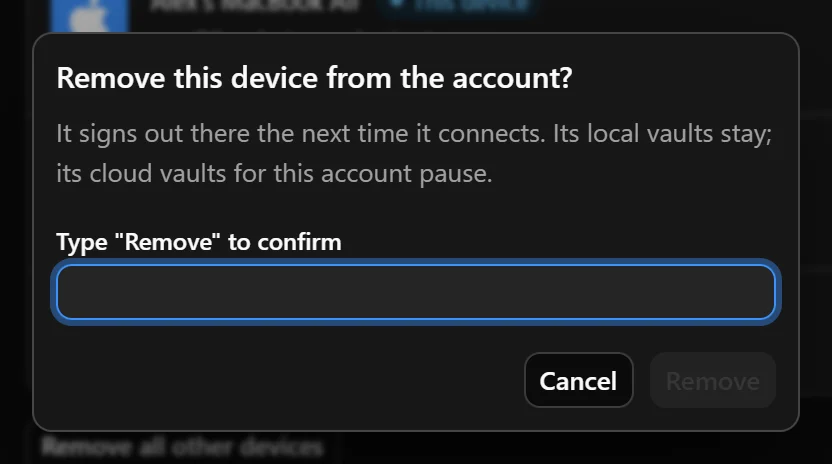
- Type Remove in the confirmation dialog.
- Select Remove to confirm.
The device signs out of this account the next time it connects. Its local vaults remain available, while this account’s cloud vaults stop syncing there until you sign in again.
Removing a device does not delete the account’s cloud vaults or remove them from your other connected devices.
Remove all other devices
To keep only the device you are currently using connected to the account:
- Open the account in Settings → Account.
- Select Remove all other devices below the device list.
- Type Remove in the confirmation dialog.
- Select Remove all.
This device stays signed in. Each other device signs out the next time it connects.
If the device list cannot load
If Calendar shows Couldn’t load devices, check your internet connection and select Retry.
If a previously loaded list is available, Calendar may show it while trying to refresh the information. An accompanying notice explains whether you are offline or the list is out of date. Wait for it to refresh before relying on the device count or last-seen information.
Was this page helpful?
Your feedback helps us improve the docs.