
Schedules
Autocomplete
Autocomplete places eligible tasks into available schedule slots. It updates the calendar when scheduling information changes while leaving fixed commitments in place.
Start and stop autocomplete
Use the autocomplete control button 
 in the calendar header to pause or resume autocomplete for a vault.
Each vault has its own autocomplete state. Pausing autocomplete for one vault does not pause it for other vaults.
For a local vault, autocomplete runs on your device and does not require an account or a paid plan. For a cloud vault, autocomplete runs on the server. The resulting task placements sync across your connected devices.
Select the control to pause autocomplete. Select it again to resume autocomplete and begin a new scheduling run. If you pause autocomplete for a local vault while a run is in progress, the current run is canceled.
Stopping autocomplete prevents new scheduling runs. It does not remove task placements already shown in the calendar.
For a cloud vault, the pause state syncs across your connected devices.
Status indicators
The autocomplete control shows its current status:
| Status | Meaning |
|---|---|
| Active | Autocomplete is on and waiting for relevant changes. |
| Running | Autocomplete is currently updating task placements. |
| Queued | Another scheduling run will begin after the current work finishes. |
| Paused | Automatic scheduling is stopped. |
| Error | The last scheduling run could not be completed. |
| Offline | The app cannot reach the server that schedules this cloud vault. |
| Sync stopped | The server is not accepting sync for this vault. |
The list of vaults in the autocomplete menu shows Running as Solving and Error as Failed. If the status is Error, stop and restart autocomplete to begin another run. If the error continues, review the app notification and error information.
When a cloud vault is offline or sync has stopped, the autocomplete control cannot restore its connection. See Sync, backups, and recovery.
When autocomplete runs
While autocomplete is active, it adjusts the schedule whenever you make a change that may affect the calendar.
These changes include:
- creating, editing, completing, deleting, or moving a task;
- changing a task’s duration, start time, deadline, priority, schedule, or autocomplete settings;
- changing inherited properties on a folder or list;
- creating, editing, or deleting an event;
- creating, editing, or deleting a schedule or schedule slot;
- changing a repeat rule;
- assigning or removing a task from a schedule;
- restarting autocomplete.
When you start the app, a local vault checks whether a scheduling run is needed. For a cloud vault, changes must reach the server before they can affect its schedule.
Several changes made close together may be handled in the same run. If a run is already in progress, another required run is queued.
What autocomplete considers
A task can be placed when:
- it is not completed;
- autocomplete is enabled for the task;
- it has an assigned schedule;
- it has remaining work to schedule;
- its schedule has available slots.
Autocomplete uses the expected duration entered by the user as the amount of time that the task requires. Manually scheduled work and task blocks that have already started count toward this duration.
When deciding where and in what order to place work, autocomplete considers:
- schedule slots assigned to the task;
- events and fixed task blocks that already use part of those slots;
- the task’s start time;
- its deadline;
- task dependencies;
- schedule priority;
- the manual order of tasks within the same priority group;
- chunking settings;
- the remaining available time.
Autocomplete follows the priority order ASAP, High priority, Medium priority, then Low priority. Dependencies are respected so that a task is not placed before work on which it depends. A task with a deadline moves ahead of higher-priority work only when that is needed for it to finish on time. If a deadline cannot be met, the priority order is kept and a scheduling warning reports the miss.
Autocomplete places tasks only in slots belonging to their assigned schedule.
What autocomplete does not move
Autocomplete does not move:
- events;
- manually scheduled task blocks;
- task blocks that have already started;
- completed tasks.
Future task blocks created by autocomplete may move when the calendar changes.
To keep an autocompleted task occurrence at its current time, right-click it and select Pin. The occurrence becomes a fixed placement immediately.
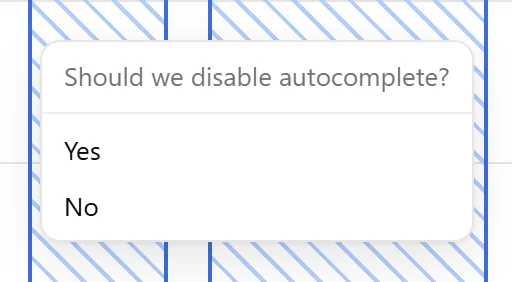
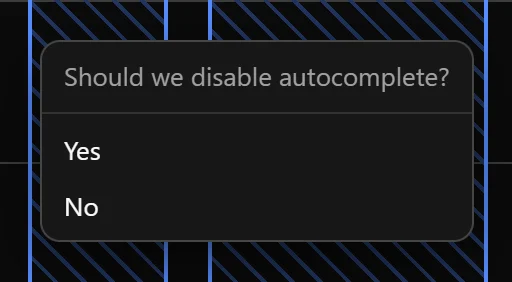
If you move or resize an autocompleted task block manually, Nodify Calendar asks whether autocomplete should be disabled. After you confirm, the task block becomes a fixed manual placement.
To allow autocomplete to place this work dynamically again, delete the fixed task occurrence from the calendar, then restart autocomplete if it is paused.
Chunking
Chunking allows autocomplete to divide a task across several available periods when no single period can contain its full expected duration.
When chunking is enabled, two settings control the result:
| Setting | Description |
|---|---|
| Minimum duration | The smallest task block autocomplete may create. |
| Preferred duration | The block size autocomplete tries to use when enough time is available. |
If these values are not configured, autocomplete uses a minimum duration of one hour and a preferred duration of two hours.
The preferred duration cannot be shorter than the minimum duration. If inherited settings provide a shorter preferred duration, autocomplete uses the minimum duration instead.
When chunking is disabled, the task needs one uninterrupted period long enough for all its remaining work.
Autocomplete always splits a task whose remaining work is longer than 24 hours, even if chunking is disabled in its settings. No block it creates is longer than 24 hours.
Chunking settings can be configured directly on a task or inherited from its folder or list. See Task properties and Task organization.
Hard and soft deadlines
A deadline is soft unless the task’s Is hard deadline? setting is enabled.
With a soft deadline, autocomplete first tries to place the task before the deadline. If there is not enough time, it may place the remaining work after the deadline and show a warning.
With a hard deadline, autocomplete cannot place any part of the task after the deadline. If the available time before it is insufficient, part or all of the task remains unplaced.
Hard-deadline settings can be configured directly on a task or inherited from its folder or list.
A soft deadline does not allow autocomplete to use slots from another schedule.
For help with unplaced work or late completion, see Scheduling warnings.
Was this page helpful?
Your feedback helps us improve the docs.