
Getting started
Install and get started
Nodify Calendar is available for macOS, Windows, and Linux. This guide shows you how to install the app and use its main navigation controls.
Download and install
Go to nodify.io/calendar and download the version for your computer. Open the downloaded file and install Nodify Calendar.
The app and local vaults are free and do not require an account. If you want to sync your data across devices, please refer to Set up Nodify Cloud and Vaults.
How the app is arranged
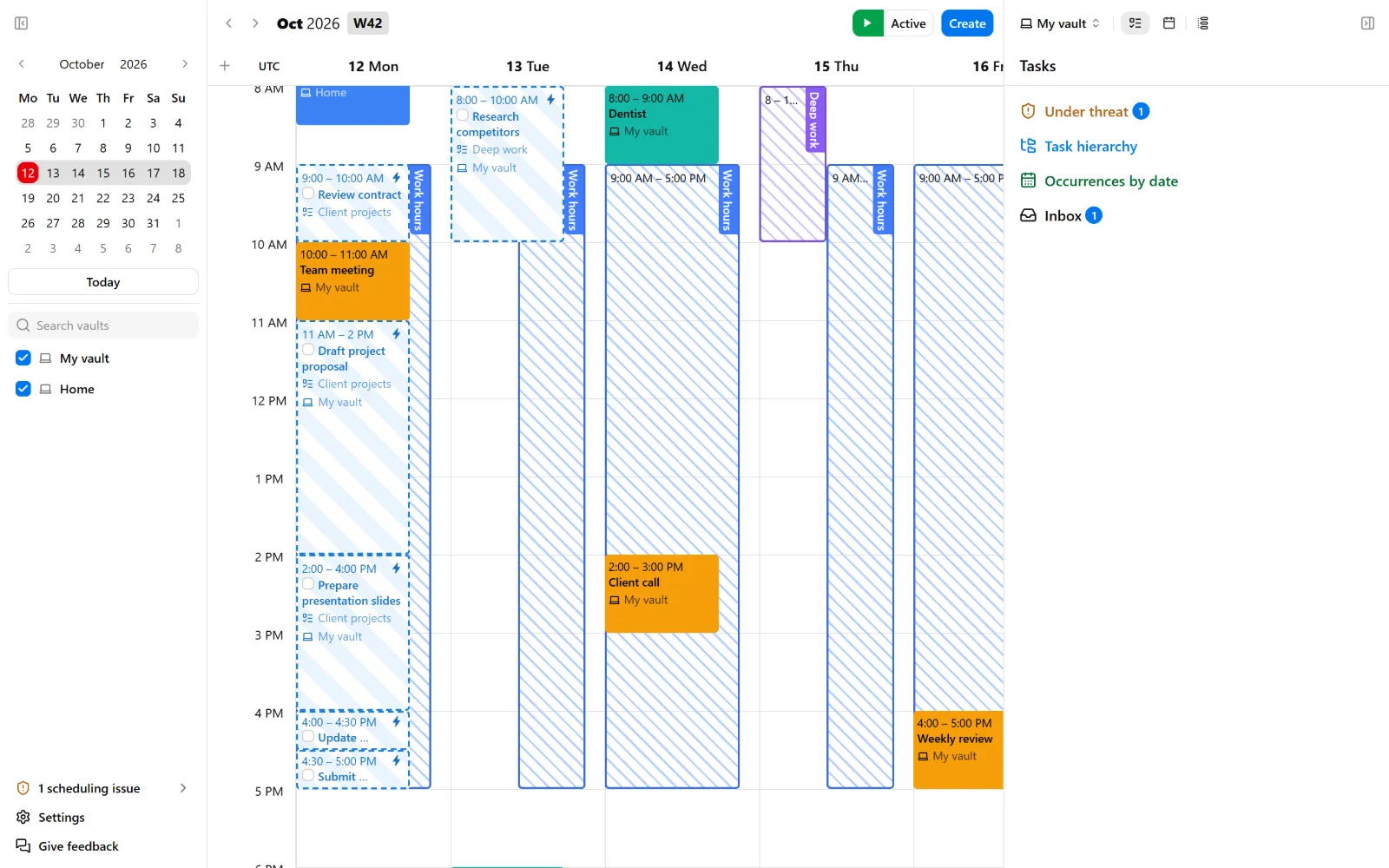
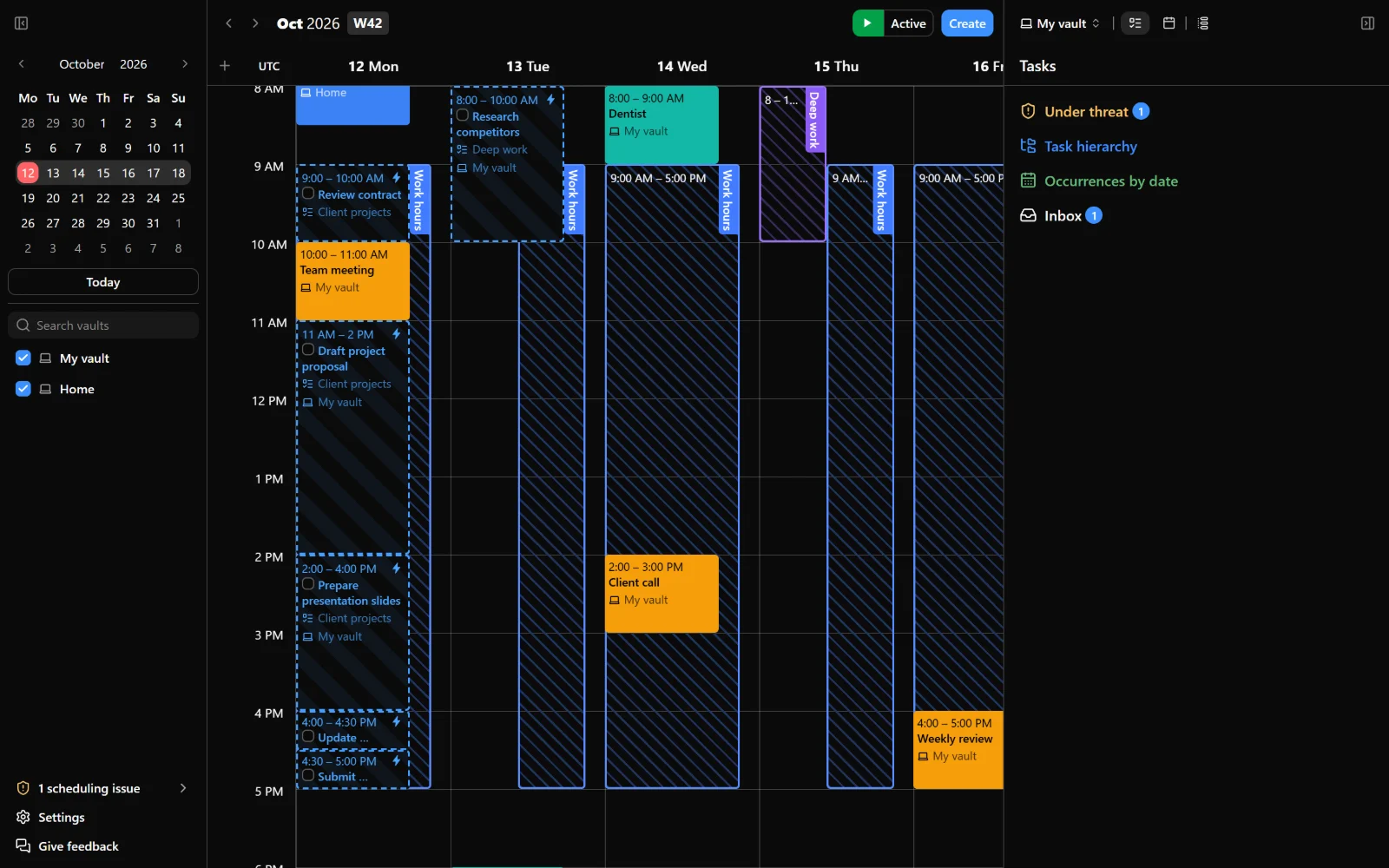
Nodify Calendar has three main parts:
- Calendar — the central workspace where you view and plan your week.
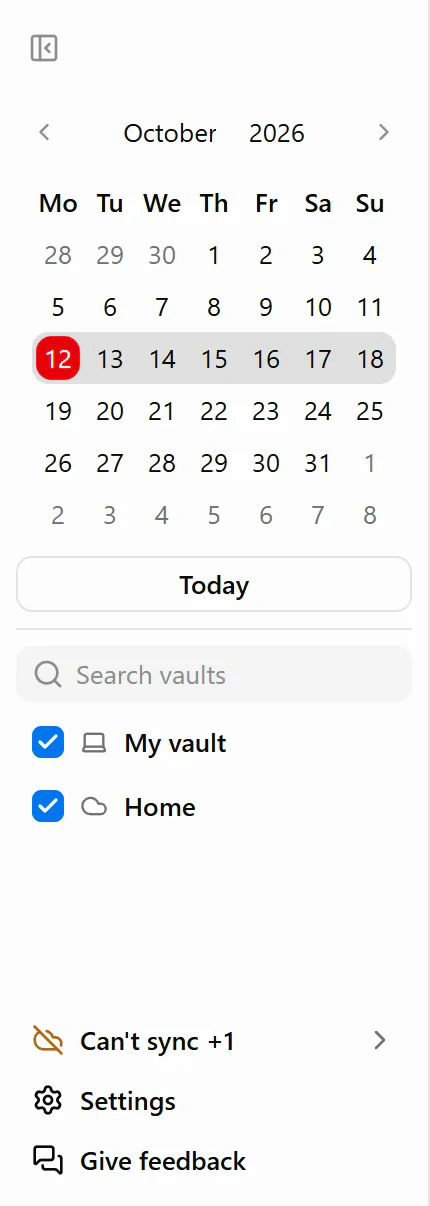
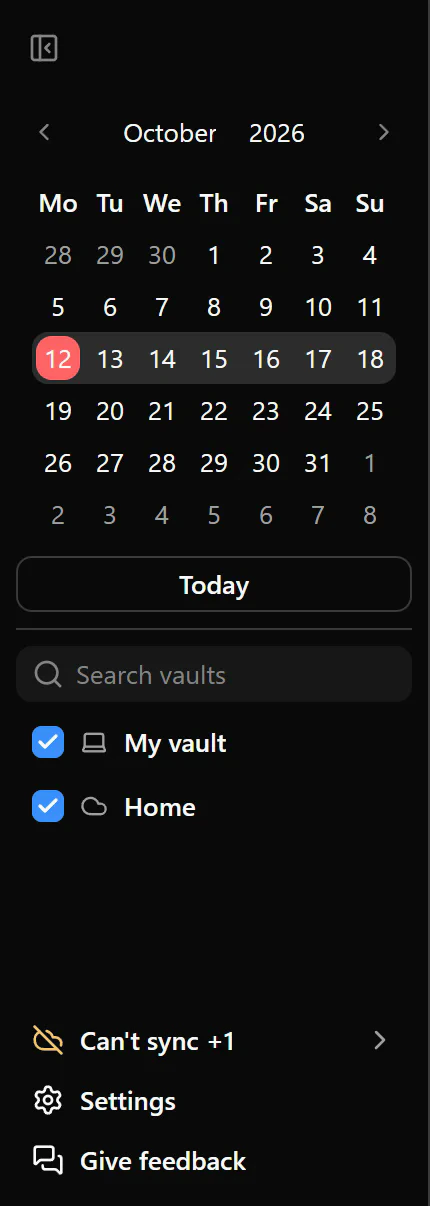
- Left sidebar — a navigation panel with a small calendar, Today, a filter for choosing which vaults and items appear on the calendar, Settings, and Give feedback. Notices above Settings show scheduling warnings, updates, and cloud sync status or issues.
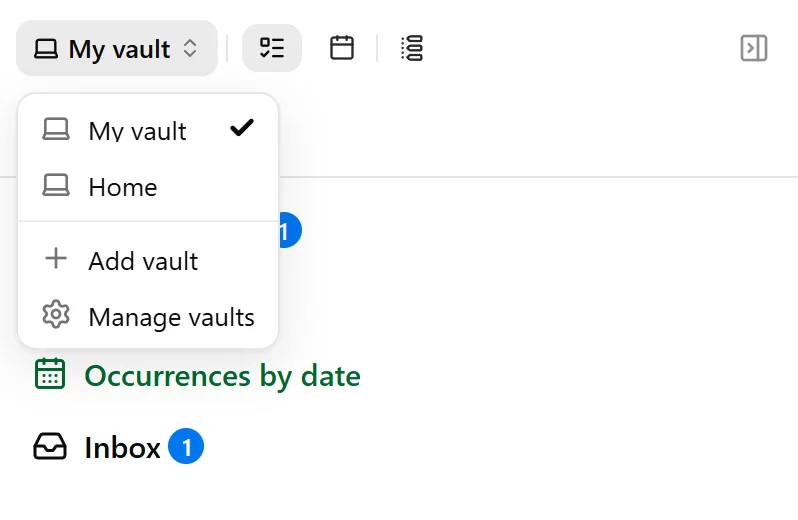
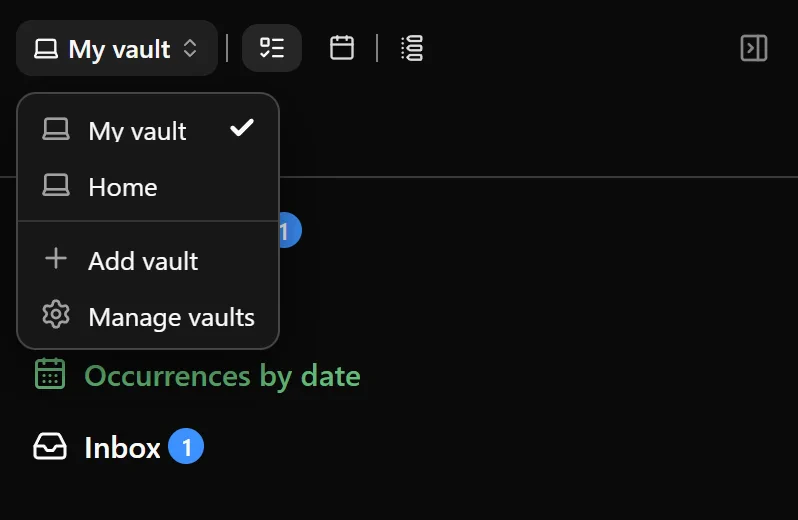
- Right sidebar — the working panel where you manage Tasks, Events, and Schedules. When you have more than one visible vault, the vault picker lets you switch between them, add a vault, or open vault settings.
Open and close the sidebars
Use the sidebar buttons near the top corners of the window to open or close the left and right sidebars.
The left-sidebar button is available on wide windows. In a smaller window, the left sidebar and its button are not displayed.
The right-sidebar button is available whenever the window has enough room for a separate right sidebar.
Use the left sidebar
The left sidebar helps you move through the calendar.
- Select a date in the small calendar to open its week.
- Select Today to return to the current week.
- Use the picker below Today to choose which vaults’ contents are displayed on the calendar.
- Select Settings to change app preferences or manage your accounts and vaults.
- Select Give feedback to contact the Nodify team from the app.
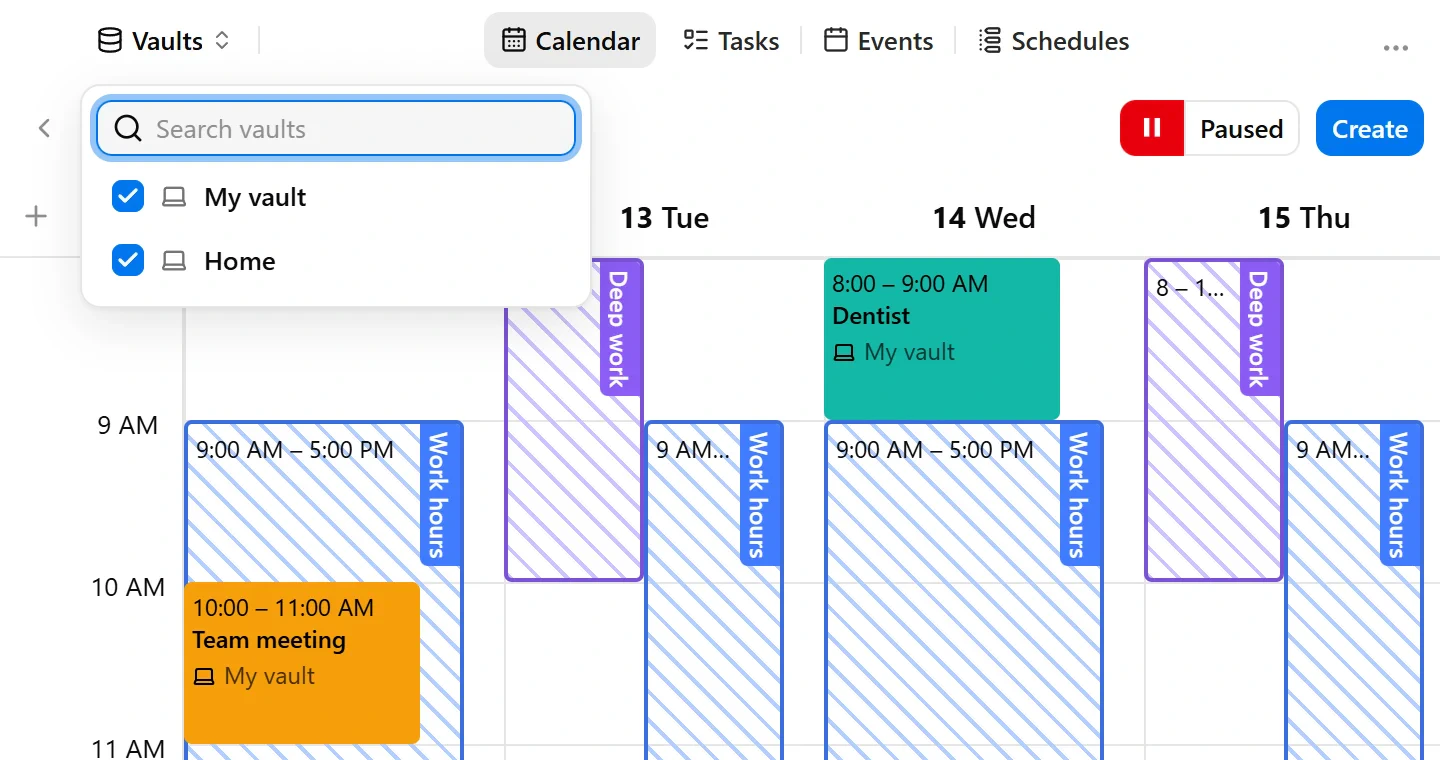
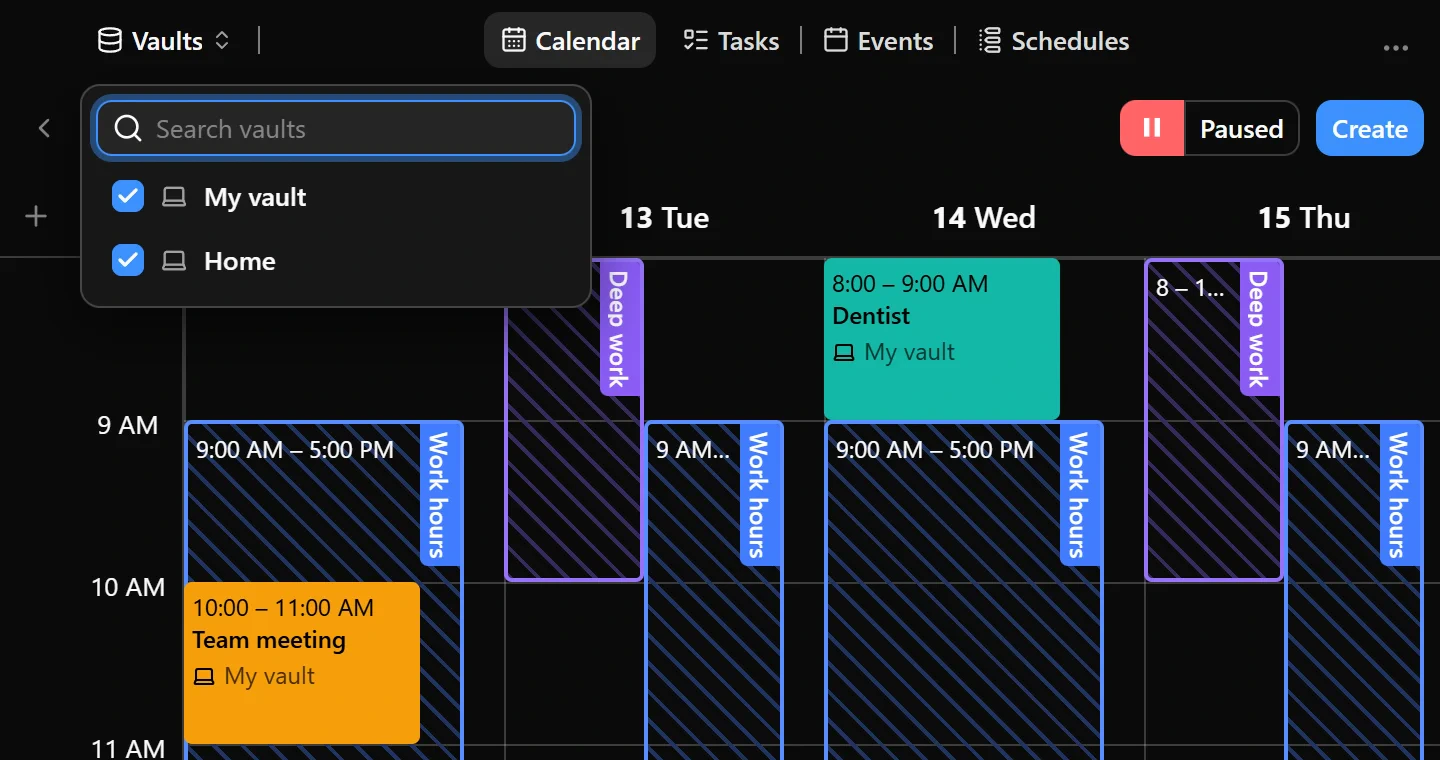
Below Today, the calendar filter lets you choose which vaults and items appear on the calendar. Expand a vault to browse its contents, then use the checkboxes to show or hide them. Use the search field to find entries in the filter.
When something needs your attention, an app notice may appear above Settings. Select it to open the notices panel.
A scheduling notice lets you review tasks that could not be scheduled as planned. An update notice lets you download the available version or select Read changelog to open its release notes.
Cloud vault status and issues also appear above Settings. These notices can show that a vault is downloading, changes are waiting to sync, or syncing needs your attention. Select a notice to read the details and see the available action.
If changes from another device cause a sync issue, select Review to decide what to keep.
Use the right sidebar
The right sidebar contains three tabs:
- Tasks
- Events
- Schedules
Select one of these tabs to open that section in the sidebar.
When you open a folder, list, calendar, schedule, or individual item, its name appears at the top of the sidebar. Use the back arrow beside the name to return to the previous level.
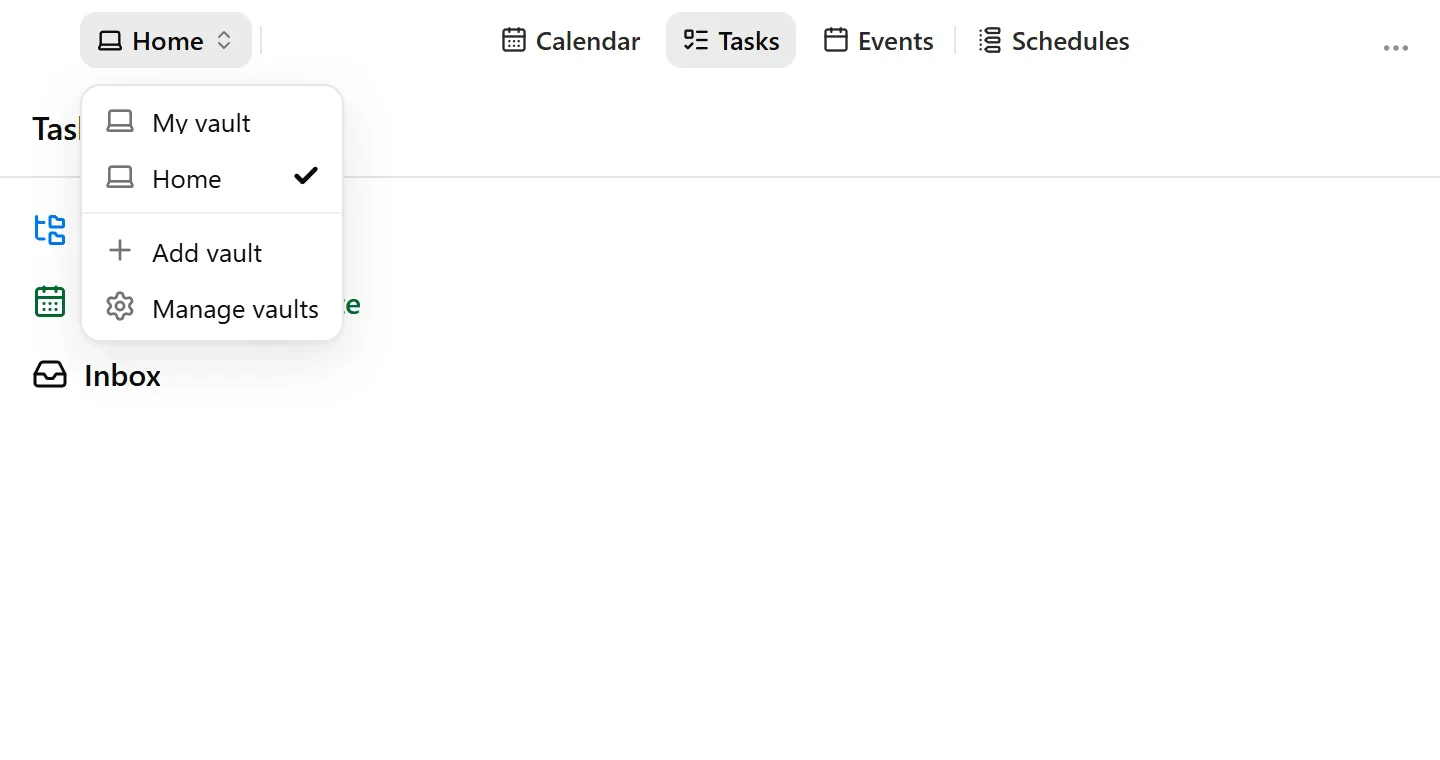
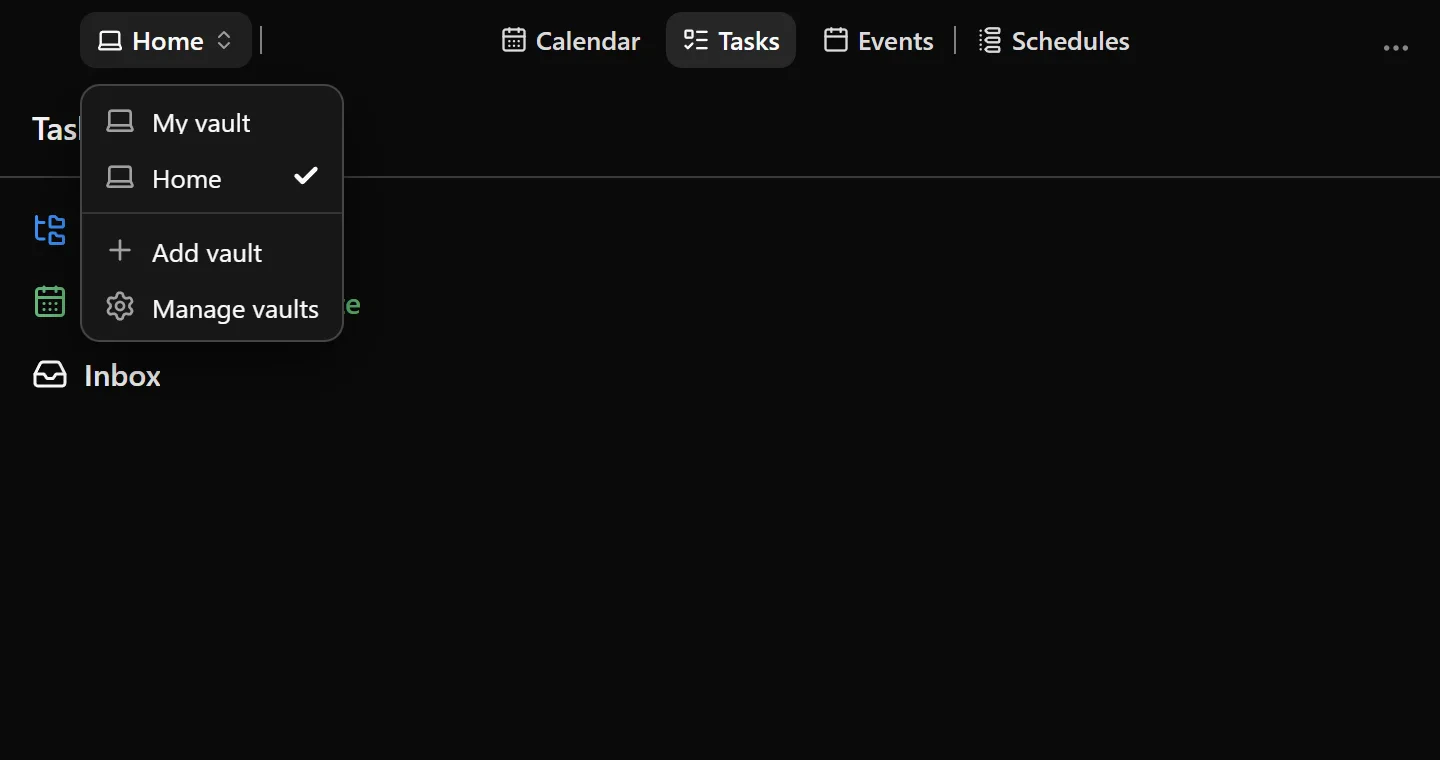
When you have more than one visible vault, a vault picker appears beside the Tasks, Events, and Schedules tabs. It shows the current vault’s name and an icon indicating whether it is local or cloud.
Select another vault to view its tasks, events, and schedules in the right sidebar. The selected vault does not change which items are shown on the main calendar. Use the left-sidebar filter to control calendar visibility.
The vault picker also includes Add vault to create a vault and Manage vaults to open vault settings.
When creating a task, event, or schedule, check which vault it will be saved in.
Use calendar item menus
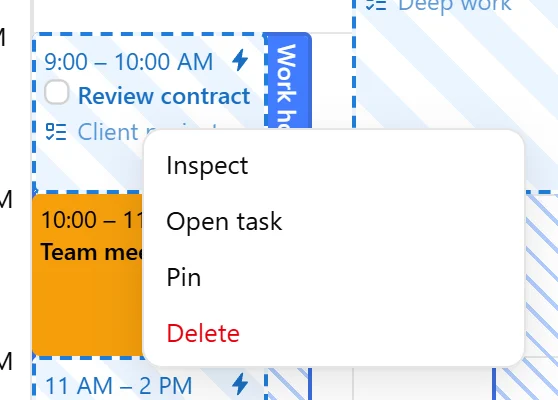
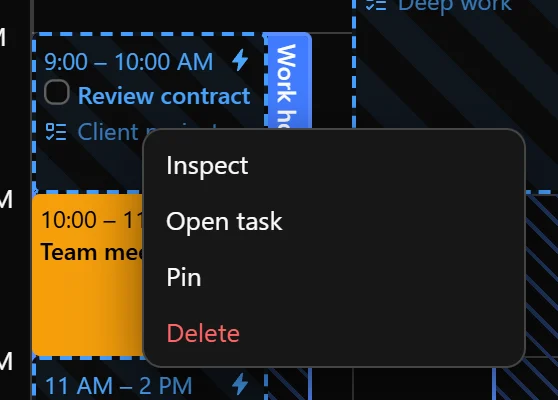
Right-click a task occurrence, event occurrence, or schedule slot on the calendar to open its context menu.
Depending on the item, the menu can include:
- Inspect — opens the item’s editor on the calendar.
- Open task, Open event, or Open schedule — opens the related item in the right sidebar.
- Pin — keeps an occurrence placed by autocomplete at its current time.
- Delete — removes the selected occurrence or slot.
Pin is available only for task occurrences placed by autocomplete. For more information about fixed placements, see Autocomplete.
Resize the right sidebar
Drag the inner edge of the right sidebar to make it wider or narrower.
The sidebar cannot be narrower than 320 pixels or wider than 640 pixels. On smaller windows, its maximum width is also limited to half of the window.
The left sidebar cannot be resized. It has a fixed width.
Double-click the resize edge to restore the default width. Nodify Calendar remembers the selected width after you close the app.
When the window is narrow
In a narrow desktop window, the separate side panels are not shown. Calendar, Tasks, Events, and Schedules appear as tabs in the main area instead.
When you have more than one local or cloud vault, the vault control works differently depending on the selected tab:
- In Tasks, Events, and Schedules, it shows the current vault’s name. Select it to open the vault picker and choose another vault. The Tasks, Events, and Schedules tabs will show that vault’s contents. The vault selector also includes Add vault and Manage vaults.
- In Calendar, the same vault control opens the calendar filter. Use it to choose which vaults and items appear on the calendar. You can show items from several vaults at the same time.
Switching the vault in Tasks, Events, or Schedules does not change the calendar filter.
Keyboard controls
Nodify Calendar supports keyboard navigation for its main controls.
| Action | Keyboard control |
|---|---|
| Move to the next control | Tab |
| Move to the previous control | Shift + Tab |
| Move between tabs | Arrow keys |
| Save a task, event, or schedule slot | Command + Enter on macOS; Ctrl + Enter on Windows and Linux |
| Save and create another item | Shift + Command + Enter on macOS; Ctrl + Shift + Enter on Windows and Linux |
| Close a creation panel without saving | Escape |
| Undo | Command + Z on macOS; Ctrl + Z on Windows and Linux |
| Redo | Shift + Command + Z on macOS; Ctrl + Shift + Z or Ctrl + Y on Windows and Linux |
| Make the right sidebar wider | Left Arrow while the resize edge is focused |
| Make the right sidebar narrower | Right Arrow while the resize edge is focused |
| Resize the right sidebar in larger steps | Hold Shift while pressing Left Arrow or Right Arrow |
| Restore the default sidebar width | Home while the resize edge is focused |
While editing text, Undo and Redo apply to the text field. To undo or redo calendar changes, leave the text field and close any open menu or dialog.
Reduced motion
Nodify Calendar follows the reduced-motion setting from your operating system. When reduced motion is enabled, interface and sidebar animations are reduced or removed.
Was this page helpful?
Your feedback helps us improve the docs.