
Schedules
Scheduling warnings
When autocomplete cannot place all the required work, Nodify Calendar creates a scheduling warning. A warning can also appear when a task with a soft deadline is scheduled to be completed after its deadline and becomes overdue.
Find scheduling warnings
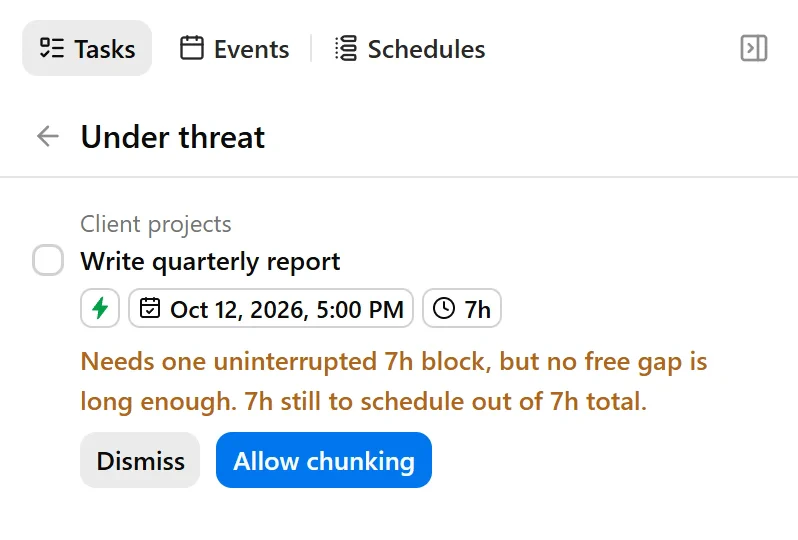
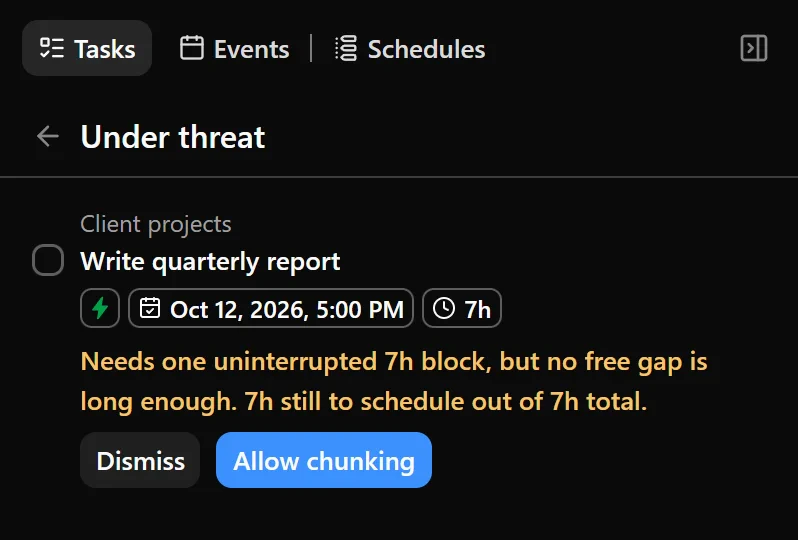
Warnings can appear on the affected task and in Under threat in the Tasks tab. Under threat is shown when at least one current warning exists.
Open Under threat to review the affected tasks, their warnings, and any available quick fixes.
Understand a warning
A warning may explain that:
- no schedule is assigned to the task;
- the assigned schedule has no available slots;
- all available slots begin after a hard deadline;
- there is not enough time before a hard deadline;
- chunking is disabled and no uninterrupted period is long enough;
- the schedule is full;
- the free periods are shorter than the task’s minimum chunk duration;
- a task it depends on cannot be placed yet, or has autocomplete turned off;
- a task with a soft deadline is scheduled to be completed after its deadline.
The warning explains what prevented the task from being scheduled as planned. Depending on the cause, some work may already be placed on the calendar while the rest remains unplaced.
For the rules behind these warnings, see Autocomplete.
Resolve a warning
Some warnings provide a quick fix. Depending on the cause, you may be able to:
- enable chunking;
- change a hard deadline to a soft deadline;
- move the deadline.
Other warnings require you to add schedule slots, free some time, change task properties, or assign a schedule. A dependency warning asks you to make room for the prerequisite, schedule it manually, or turn on autocomplete for it.
When you make changes to resolve a scheduling problem, active autocomplete updates your schedule to reflect them. If the changes resolve the reported problem, the warning is removed. If autocomplete is paused, resume it to update the schedule.
Dismiss a warning
Dismiss a warning when you have reviewed it and want to keep the current plan.
Dismissing a warning does not change the task, its scheduling settings, or its calendar placements. If the scheduling problem becomes worse, a warning can appear again.
Was this page helpful?
Your feedback helps us improve the docs.